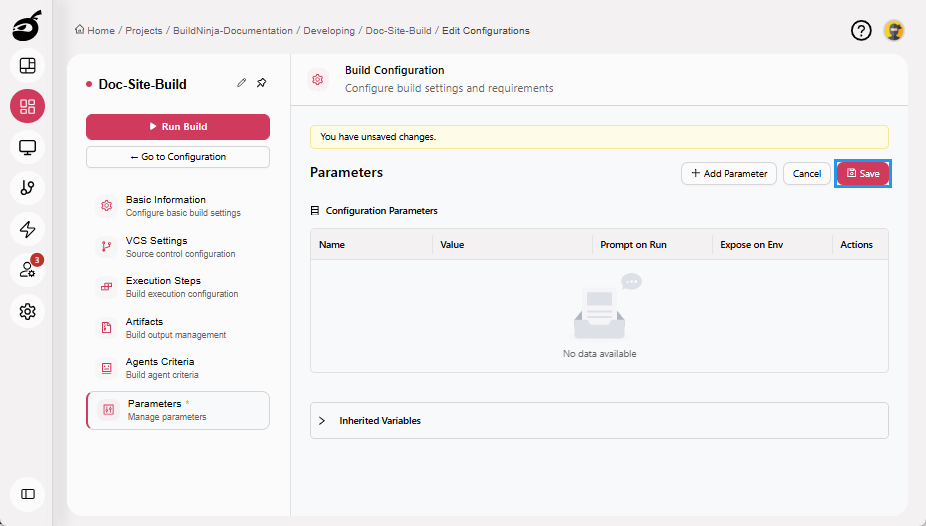
Configure Build Parameters
BuildNinja allows you to define Build Parameters that define reusable variables that control how a build executes. These parameters help eliminate hardcoded values inside build steps, improve security, and enable flexible configuration across projects and builds.
Parameters can be defined at both the Project level and the Build Configuration level. They support inheritance across project hierarchies, secure storage of sensitive values, exposure as environment variables, and dynamic values supplied at runtime.
Each parameter includes the following properties:
- Name – Unique identifier of the parameter within its scope.
- Value – The value used unless overridden.
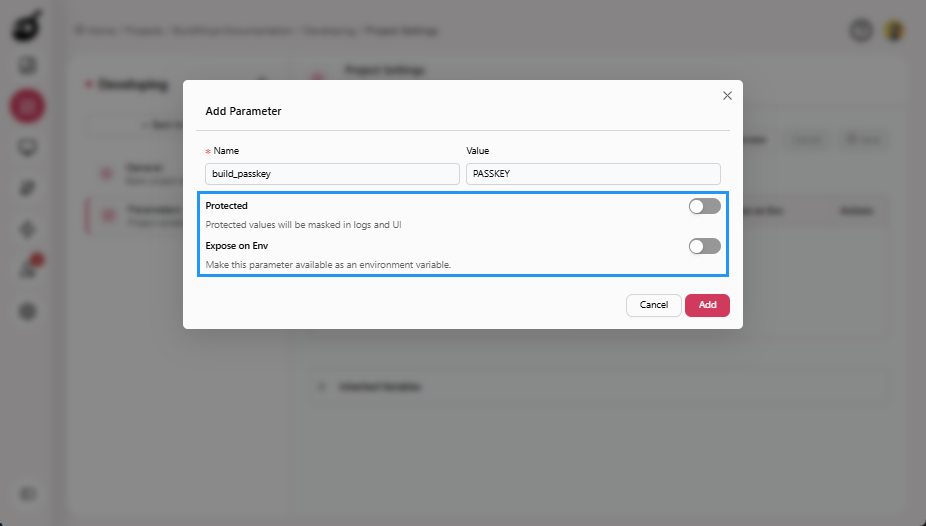
- Protected – Encrypts and masks sensitive values in the UI and logs. Protected values cannot be retrieved in plaintext after creation.
- Expose on Env – Makes the parameter available to all build steps as a standard OS environment variable.
- Prompt on Run – Prompts the user to provide a value when a build is manually triggered (supported only at build configuration level).
Parameters defined in a parent project are automatically inherited by all child projects and build configurations. If the same parameter name exists at multiple levels, the value defined at the child level overrides the parent value. Inherited parameters are read-only and must be edited at their source.
When a parameter is marked as Protected, its value is encrypted at rest, masked in the UI and logs, and never exposed during execution output. When a parameter is marked as Prompt on Run, the user is prompted to provide a value when a build is manually triggered. For automated triggers such as schedules or webhooks, the default value is used. Runtime parameters are not allowed at project level.
Parameters can be consumed in build steps in the following ways:
| Usage Type | How to Use | Example |
|---|---|---|
| Build Placeholder | Reference the parameter using the syntax |
|
| Environment Variable | Enable Expose on Env. The parameter becomes available as a standard OS environment variable in all build steps. |
|
| Dynamic Variable | Enable Prompt on Run. The user provides the value when triggering the build manually. | User enters the value in the build trigger prompt. |
The following rules apply to ensure predictable behavior, secure handling of sensitive data, and consistent parameter resolution across projects and builds:
- Parameter names must be unique within the same scope to avoid conflicts and ambiguous value resolution.
- Runtime parameters are not allowed at project level because runtime input is only meaningful when triggering a specific build.
- Default values are mandatory for runtime parameters so automated triggers (such as schedules and webhooks) can execute without manual input.
- Child parameters override parent parameters with the same name to allow local customization while still inheriting shared configuration.
- Protected parameters cannot be retrieved in plaintext after creation to prevent accidental exposure of sensitive data.
Project-Level Build Parameters
Define, edit, and delete build parameters at the project level. Parameters configured here are inherited by all child projects and build configurations unless overridden, making this level suitable for shared and organization-wide values.
Add Build Parameter
-
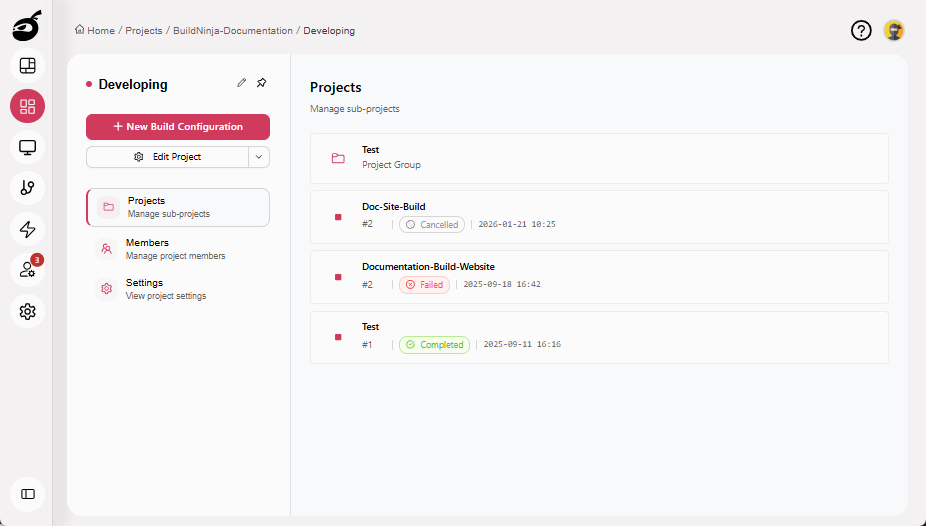
Open the required project.
-
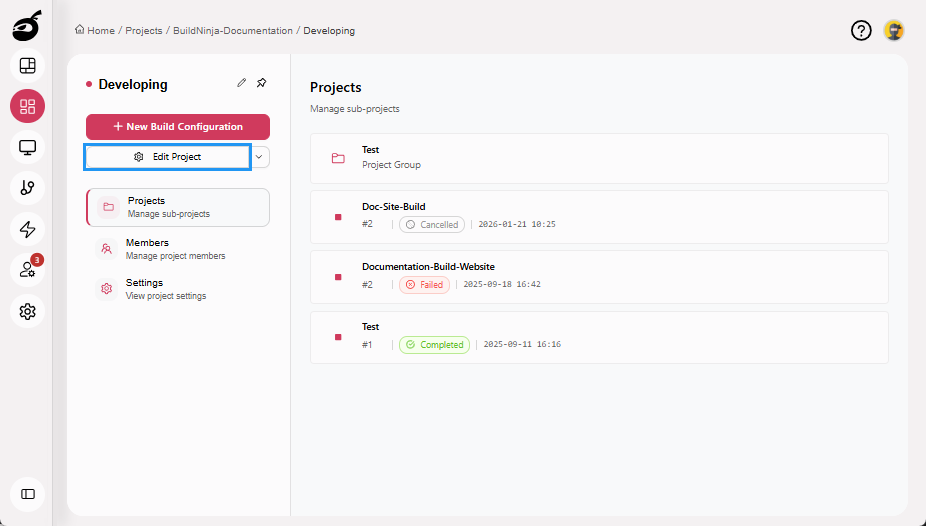
Click Edit Project.
-
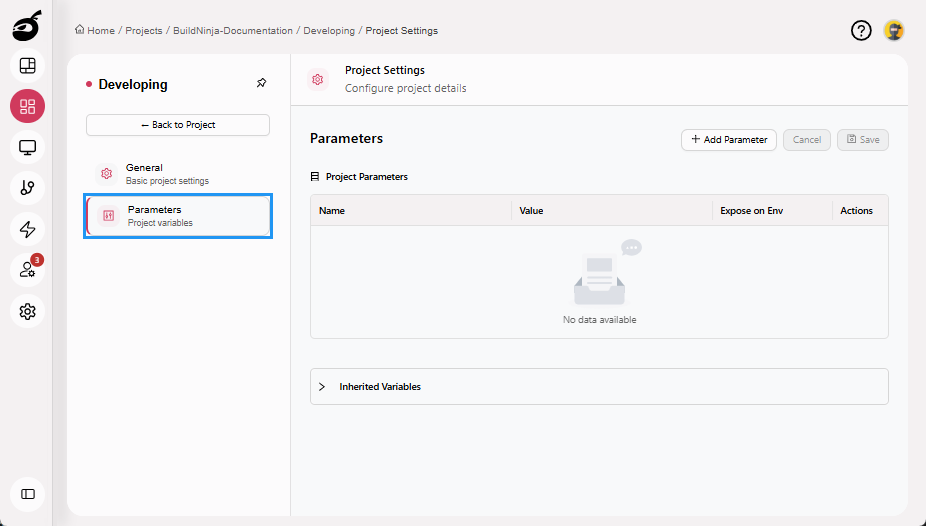
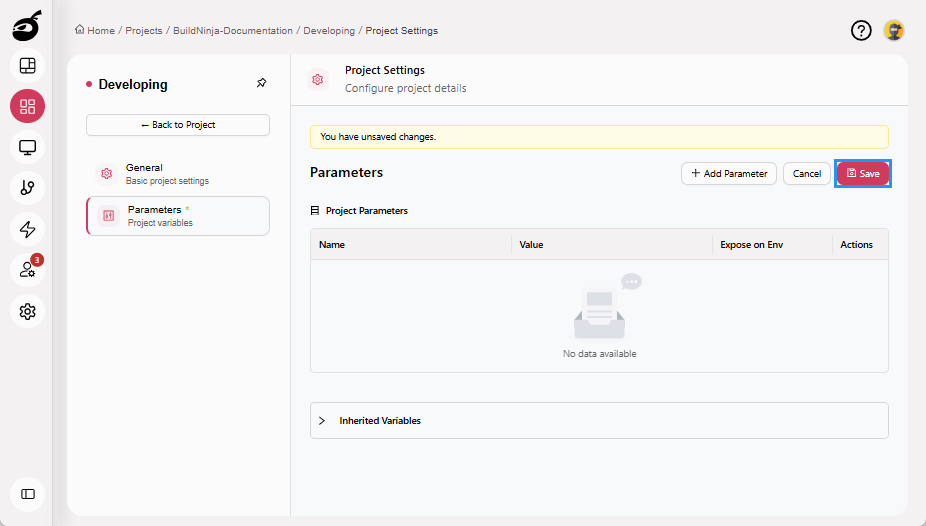
Go to the Parameters tab.
-
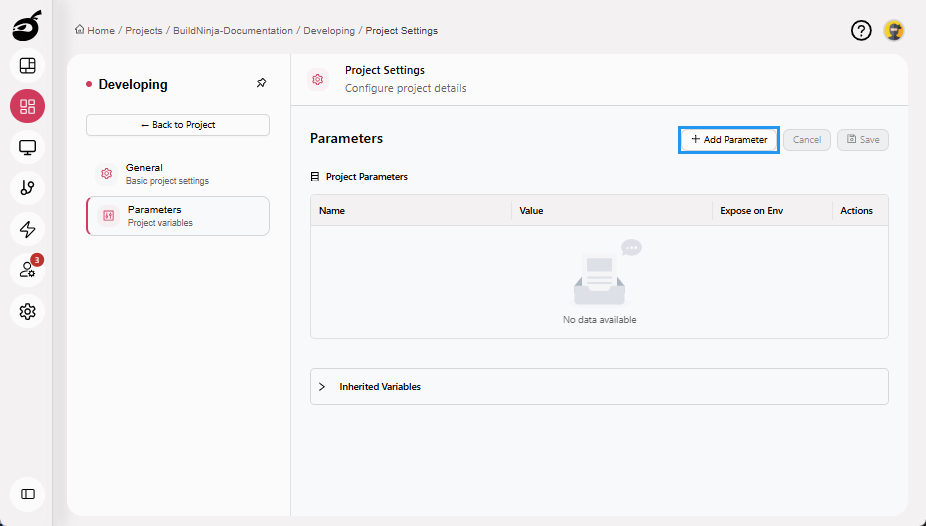
Click Add Parameter.
-
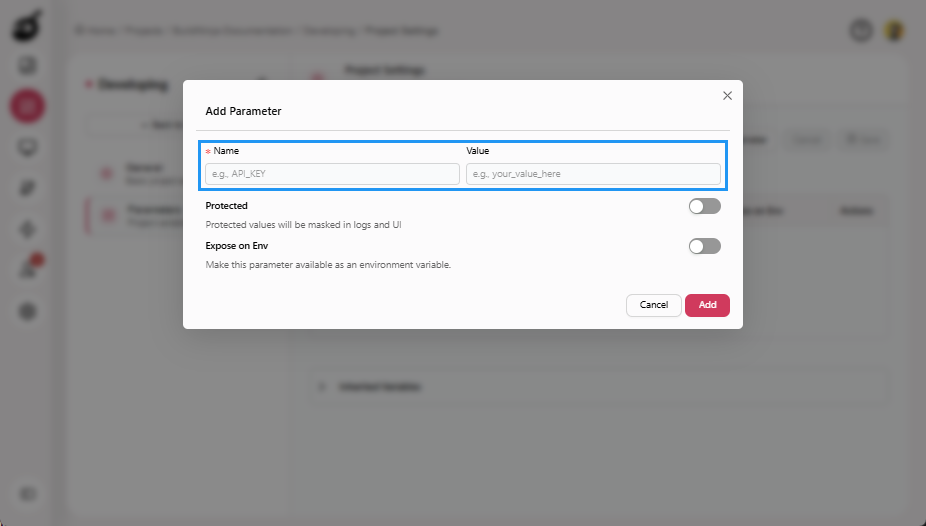
Enter the Name and Value.
-
Enable Protected or Expose on Env, if required.
-
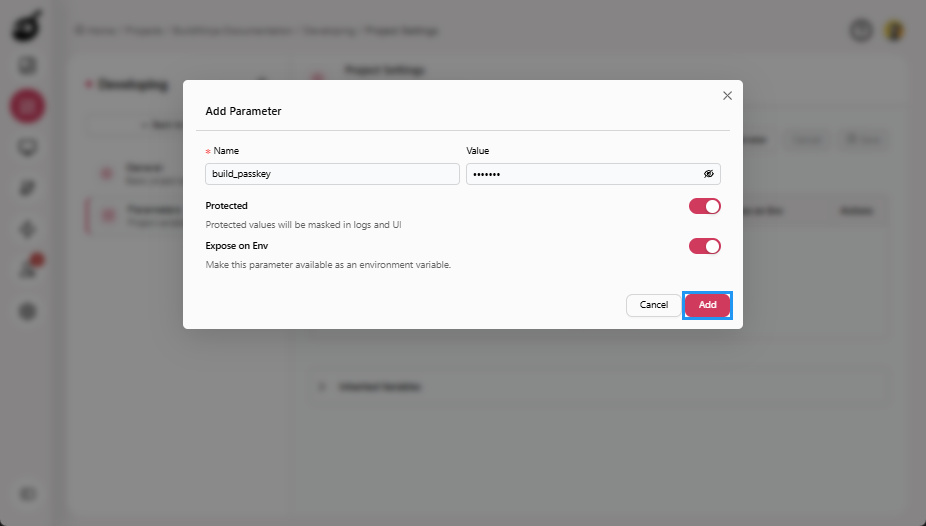
Click Add to add the parameter.
-
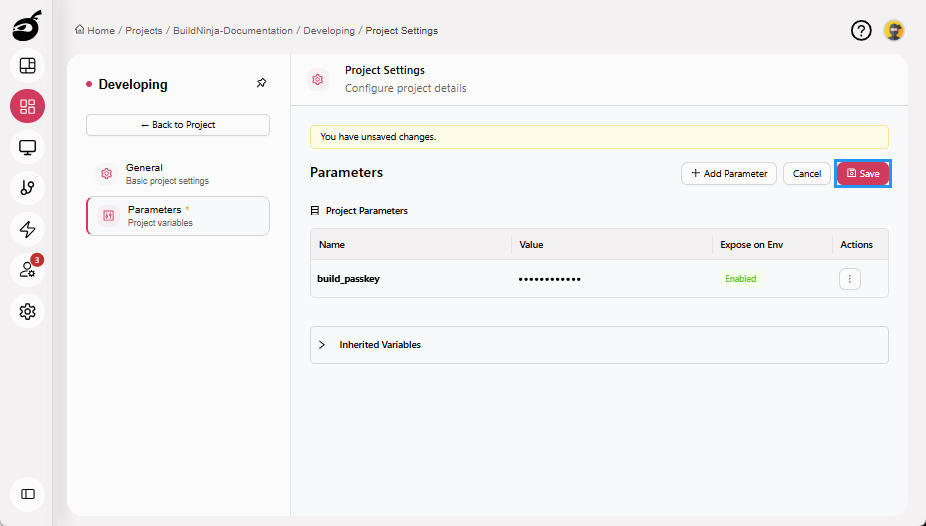
Click Save to save the Parameters.
Edit Build Parameter
-
Open the required project.
-
Click Edit Project.
-
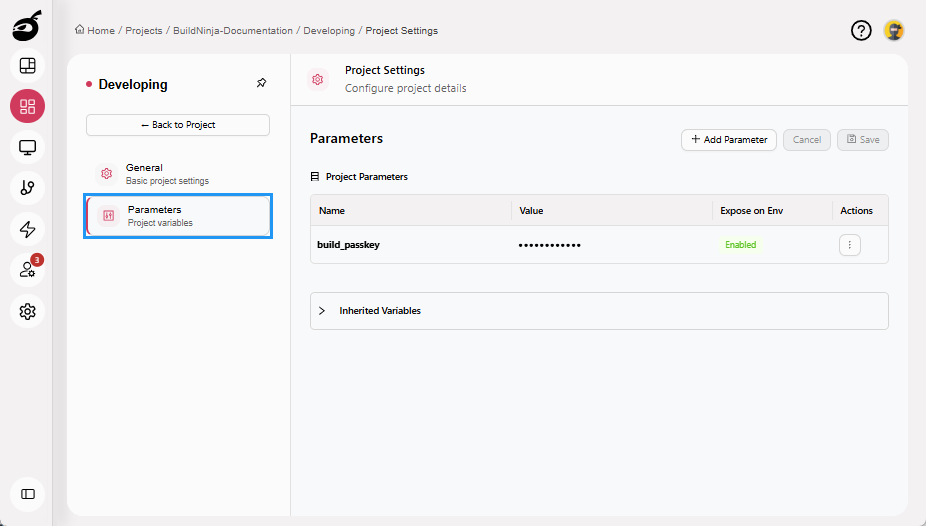
Go to the Parameters tab.
-
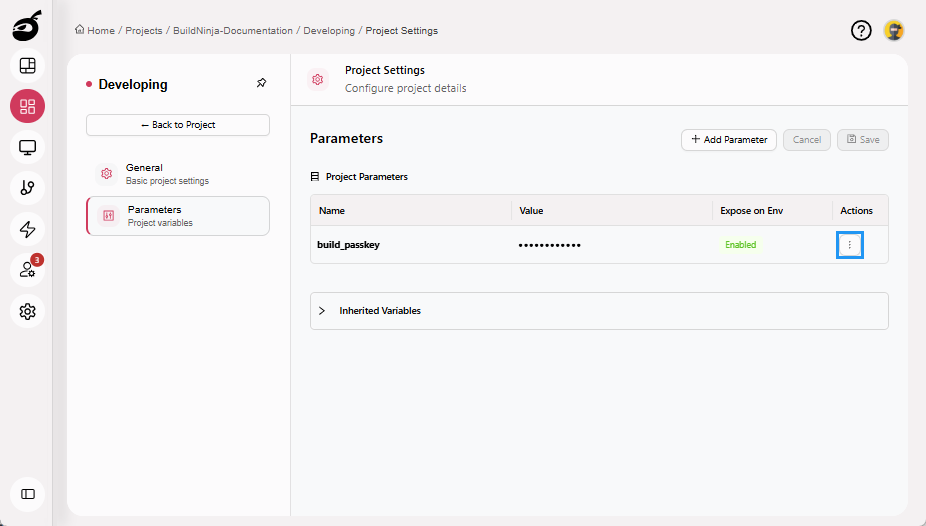
Click the Ellipsis ⋮ button in the Actions column for the parameter you want to edit.
-
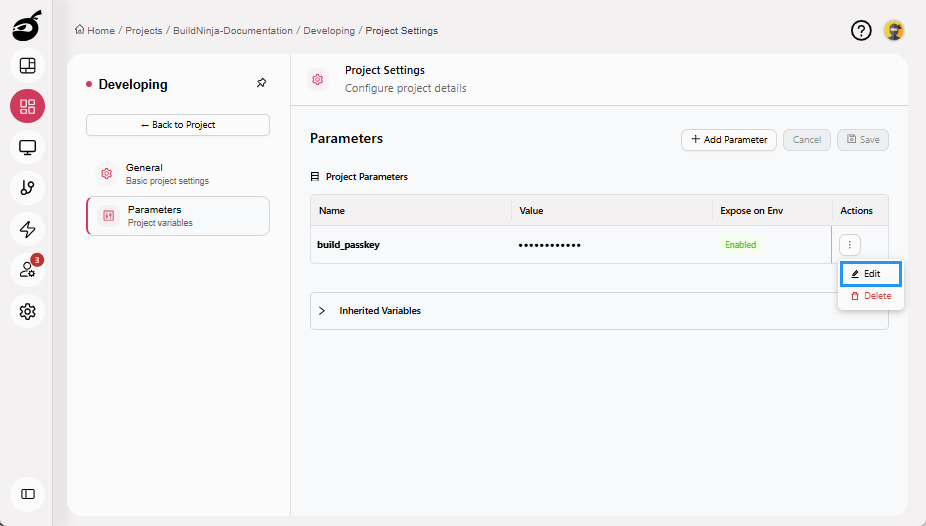
Click Edit.
-
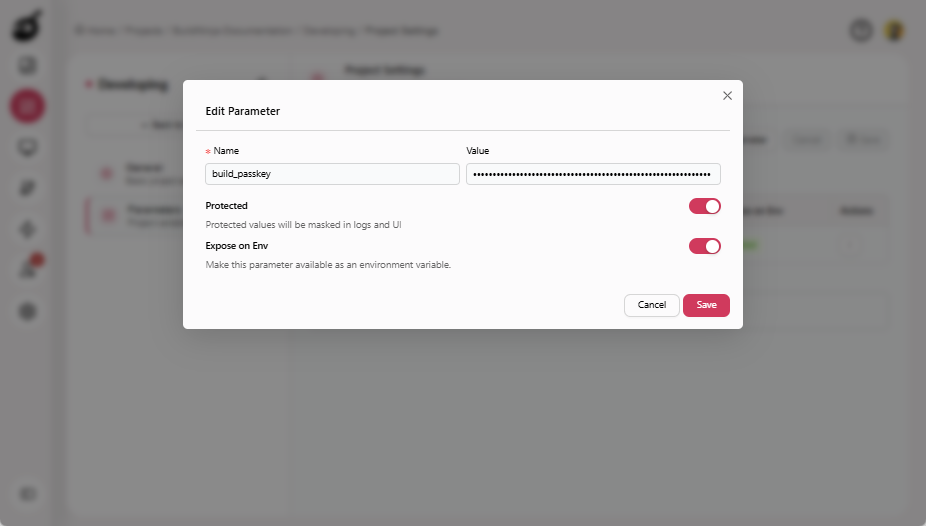
Make the required changes.
-
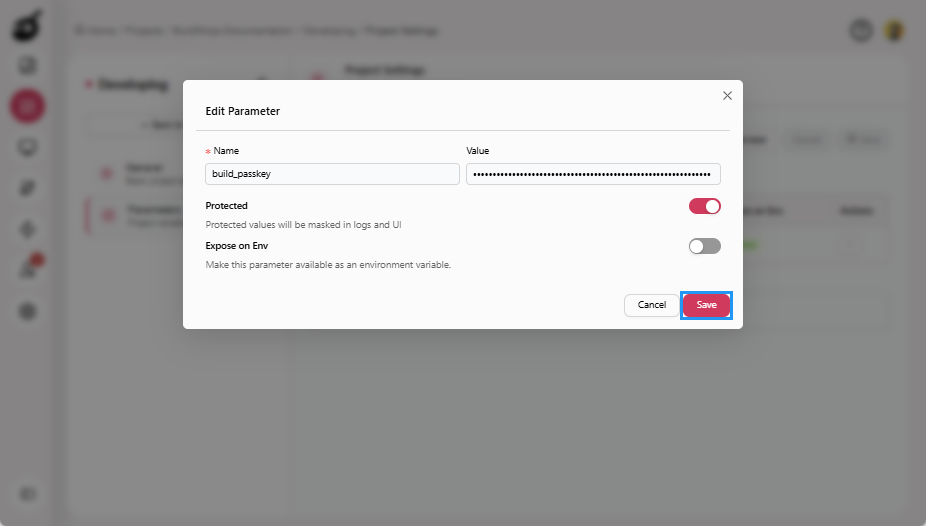
Click Save to update the parameter.
-
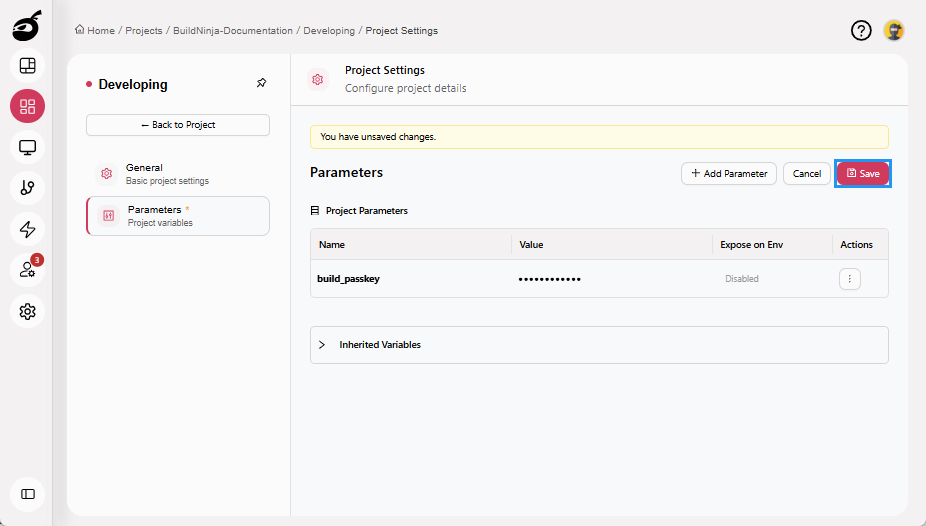
Click Save to save the parameters.
Delete Build Parameter
-
Open the required project.
-
Click Edit Project.
-
Go to the Parameters tab.
-
Click the Ellipsis ⋮ button in the Actions column for the parameter you want to delete.
-
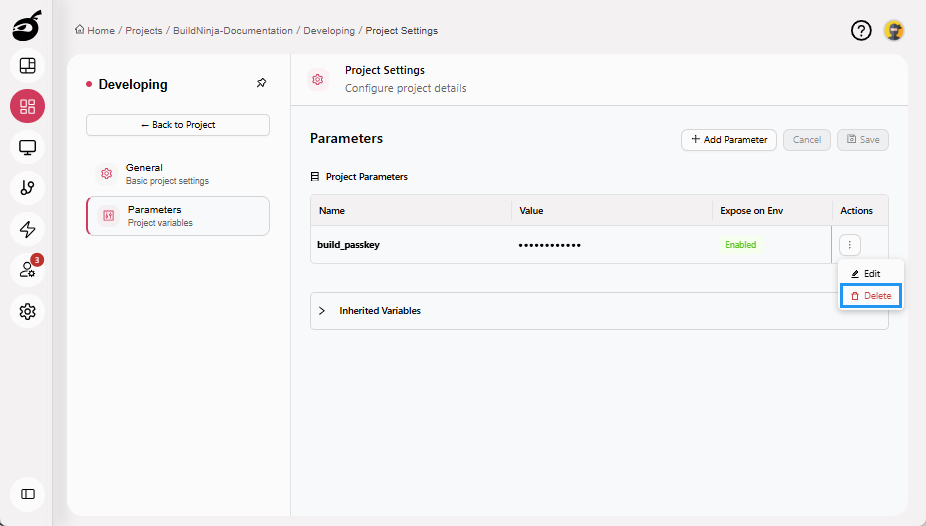
Click Delete.
-
Click Save to save the parameters.
Build Configuration–Level Build Parameters
Define, edit, and delete build parameters for an individual build configuration. Parameters set at this level override inherited project parameters and support runtime input using Prompt on Run.
Add Build Parameter
-
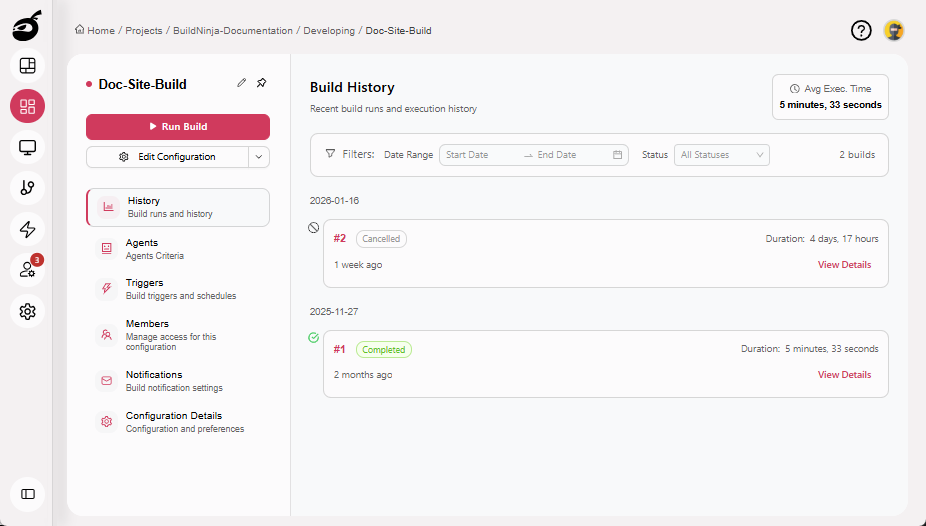
Open the required build configuration.
-
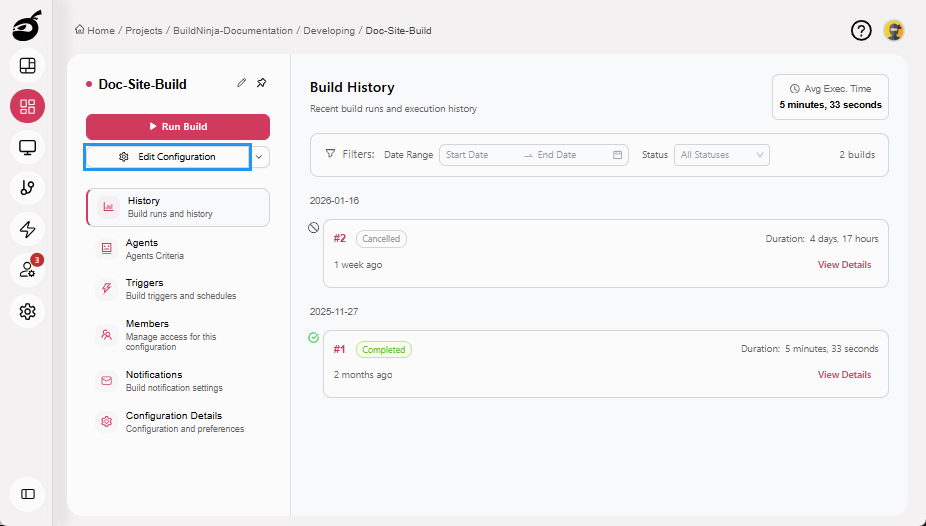
Click Edit Configuration.
-
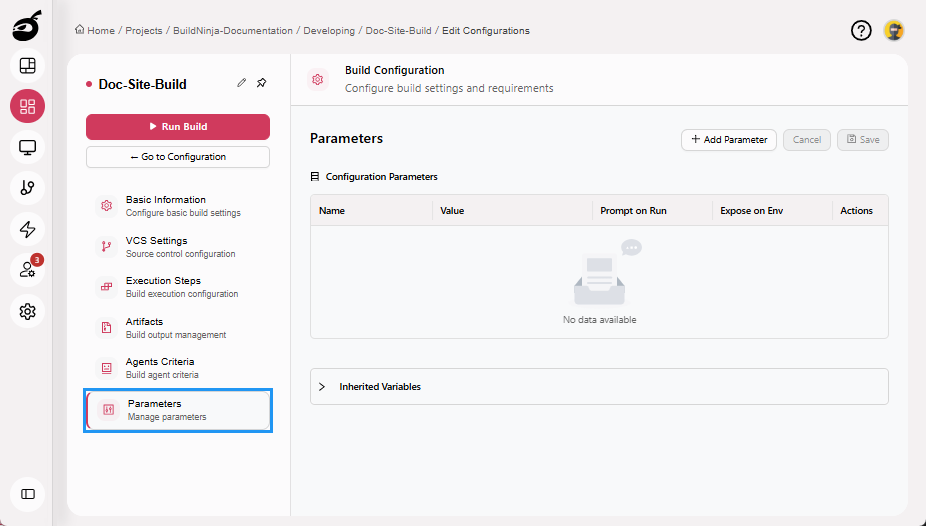
Go to the Parameters tab.
-
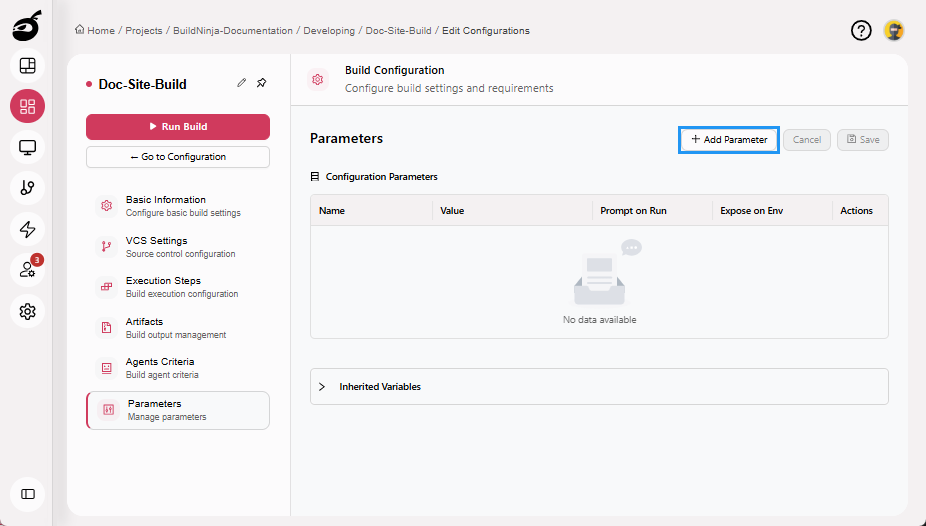
Click Add Parameter.
-
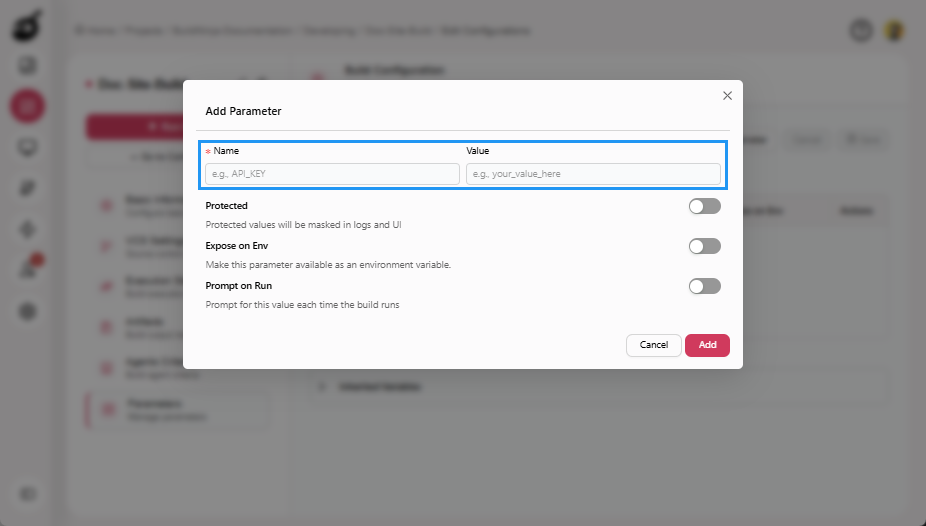
Enter the Name and Value.
-
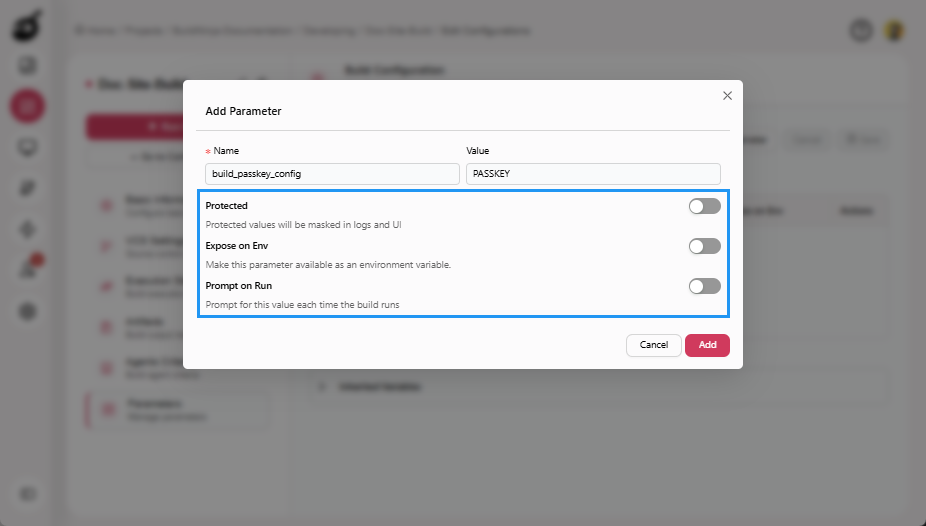
Enable Protected, Expose on Env, or Prompt on Run, if required.
-
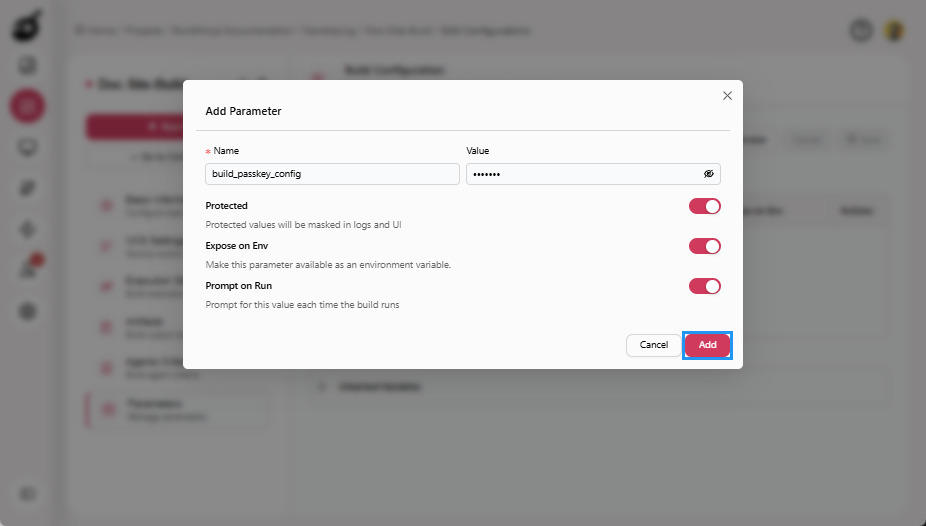
Click Add to add the parameter.
-
Click Save to save the Parameters.
Edit Build Parameter
-
Open the required build configuration.
-
Click Edit Configuration.
-
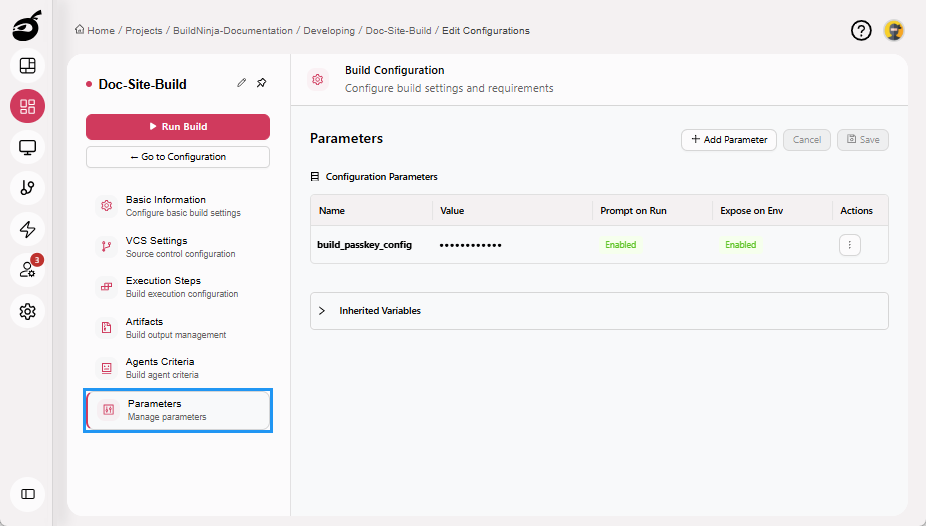
Go to the Parameters tab.
-
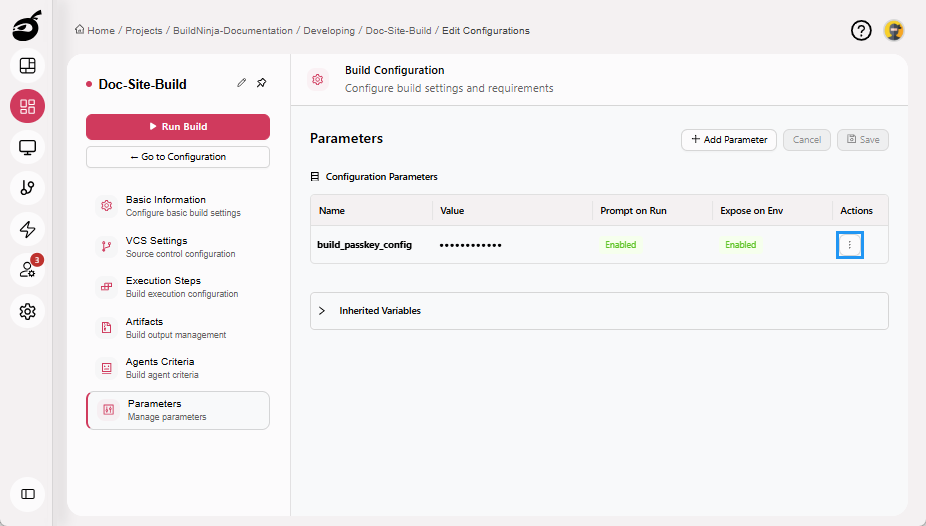
Click the Ellipsis ⋮ button in the Actions column for the parameter you want to edit.
-
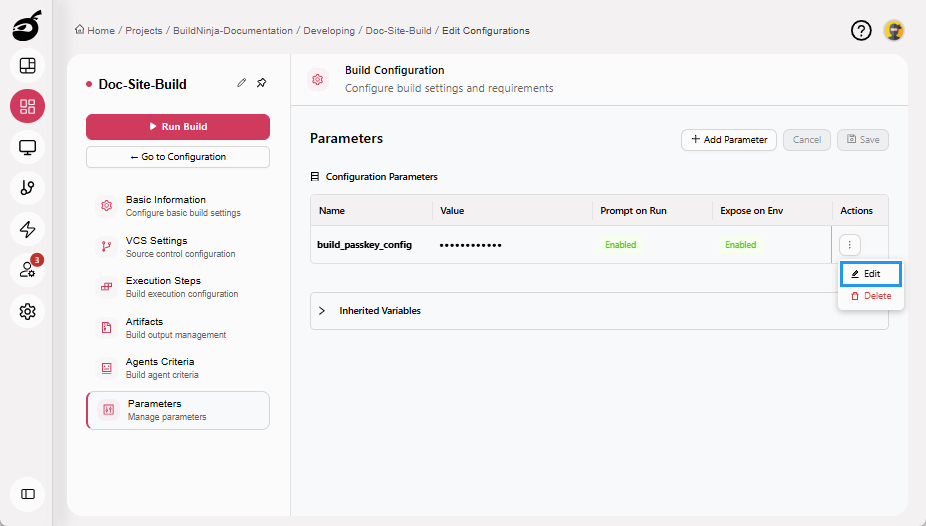
Click Edit.
-
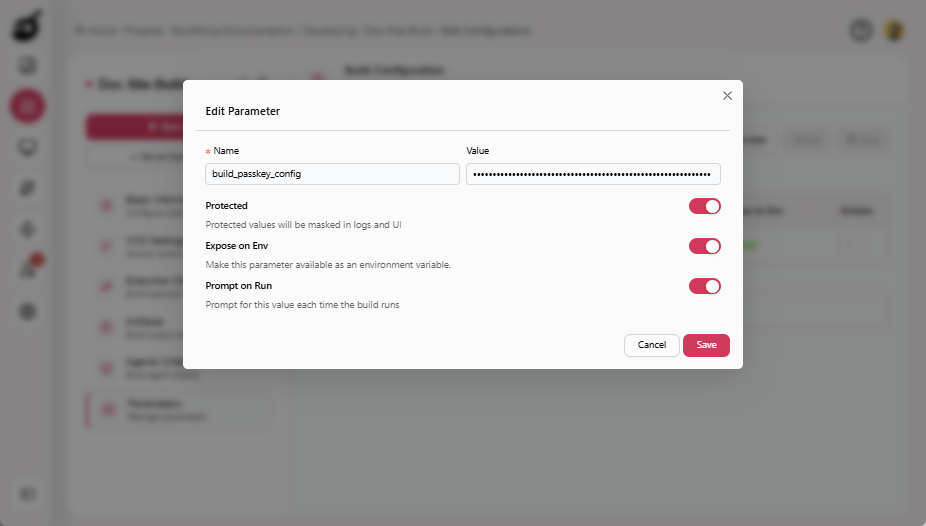
Make the required changes.
-
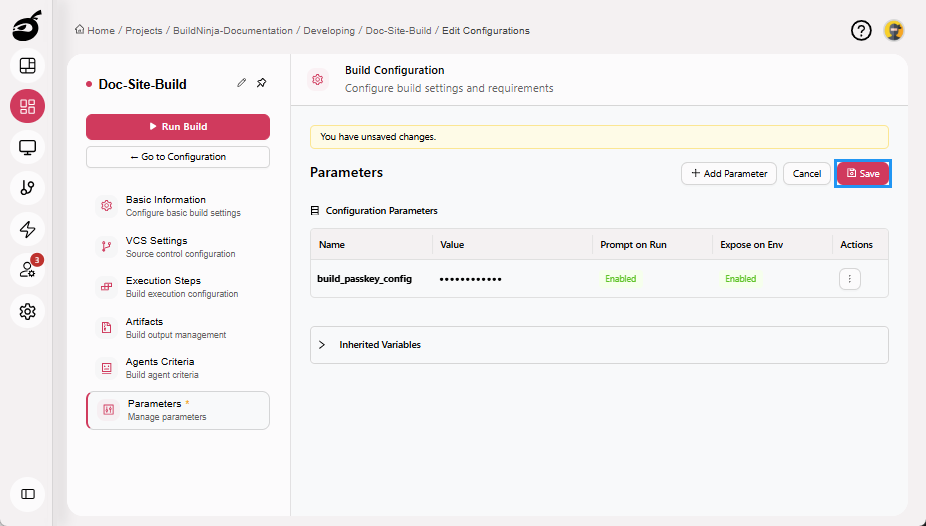
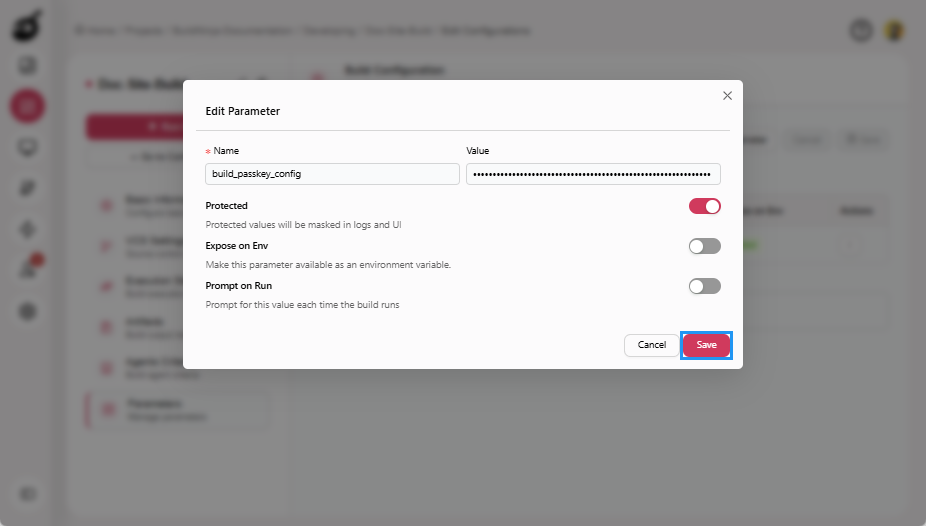
Click Save to update the parameter.
-
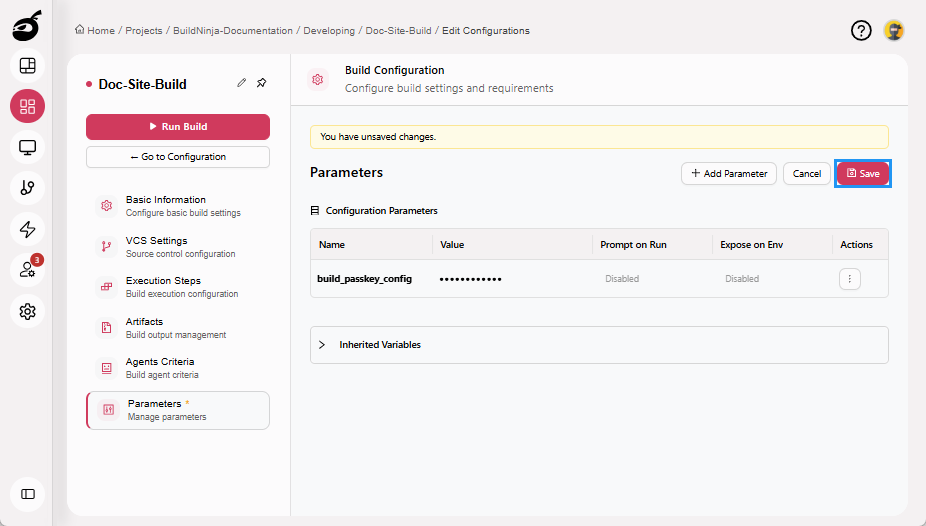
Click Save to save the parameters.
Delete Build Parameter
-
Open the required build configuration.
-
Click Edit Configuration.
-
Go to the Parameters tab.
-
Click the Ellipsis ⋮ button in the Actions column for the parameter you want to delete.
-
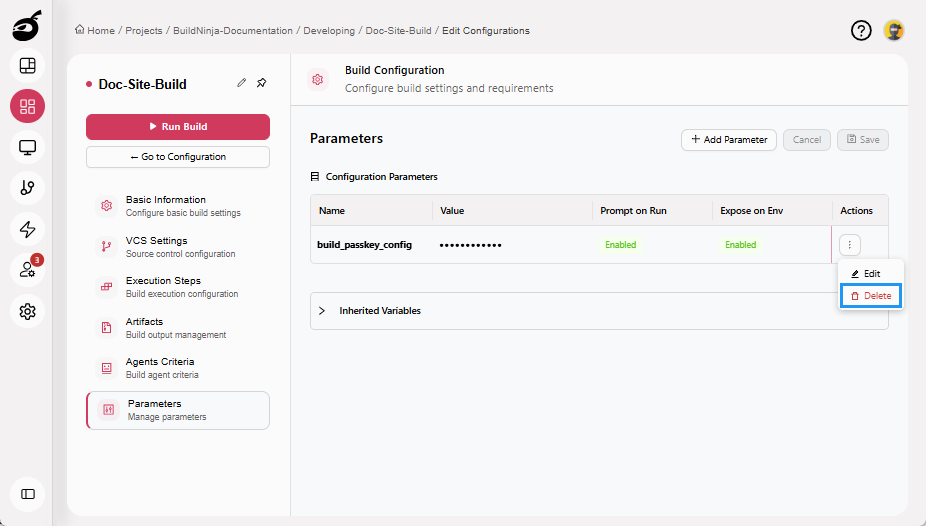
Click Delete.
-
Click Save to save the parameters.