Manage Project and Configuration Access (RBAC)
BuildNinja provides Role-Based Access Control (RBAC) that allows you to control who can view, run, modify, and manage projects and build configurations. By assigning roles to users at the project or build configuration level, you can ensure appropriate access control while maintaining security and operational consistency.
Assigning a role to a project automatically grants the same access to all subprojects and build configurations under that project. This eliminates the need to manage permissions individually for every configuration. RBAC helps you:
- Restrict access based on responsibility
- Prevent unauthorized changes
- Maintain consistent access across project hierarchies
- Scale access management as teams grow
Some system-level operations (agent management, user administration, licensing, SSO) require the System Admin role and are not controlled by project RBAC. See System Admin Permissions (RBAC)The System Admin (Super Admin) role provides unrestricted, system-wide access to BuildNinja. This role is intended for platform owners, DevOps administrators, and operations teams responsible for maintaining the overall … for details.
BuildNinja provides four project-level roles. Each higher role includes the permissions of all lower roles.
| Role | Permissions on Configurations | Permissions on Projects |
|---|---|---|
| Viewer | View builds, history, settings, and download artifacts. | View subprojects and builds. |
| Executor | Run builds. | Run builds in subprojects. |
| Editor | Edit build-related settings such as VCS, steps, parameters, artifacts, and agent criteria. | Create and update projects and configurations. |
| Manager | Configure triggers and notifiers, and manage user access. | Delete projects and configurations, and manage user access. |
Certain operations, such as duplicating or moving, require the user to have appropriate permissions on both the source project and the target project.
| Operation | Required Permissions |
|---|---|
| Duplicate configuration | Viewer on the source project and Editor on the target project. |
| Move project or configuration | Manager on the source project and Editor on the target project. |
Project-Level Access Management
Manage user roles and permissions at the project level. Access granted here applies to the project and is automatically inherited by all subprojects and build configurations.
Grant User Access
-
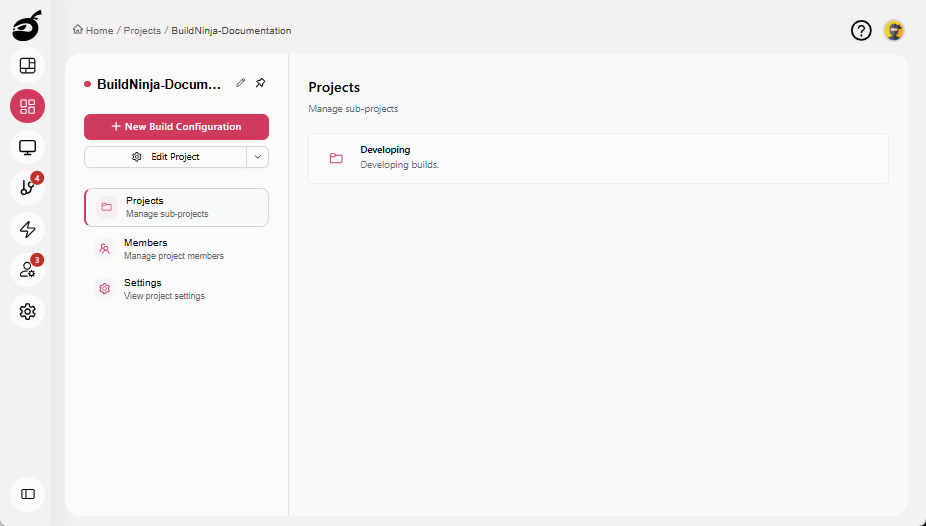
Open the required Project.
-
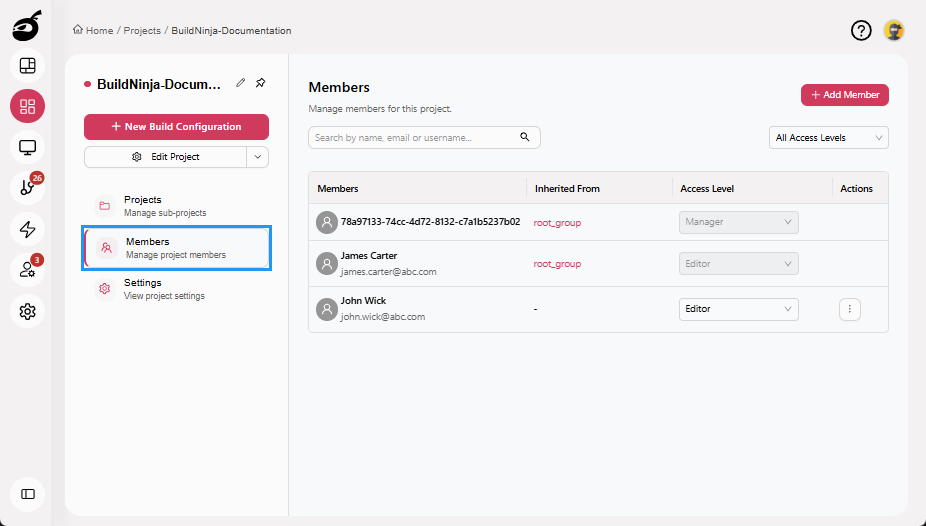
Select the Members tab.
-
Click Add Member.
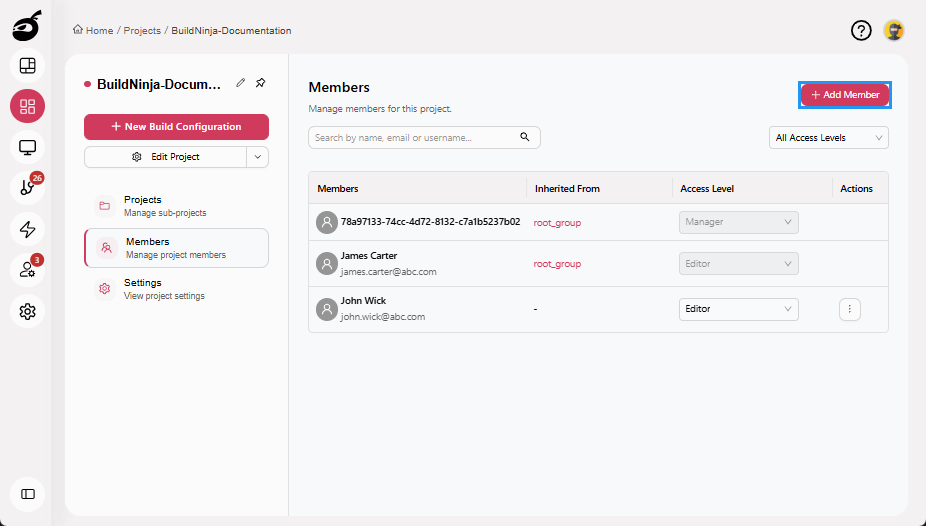
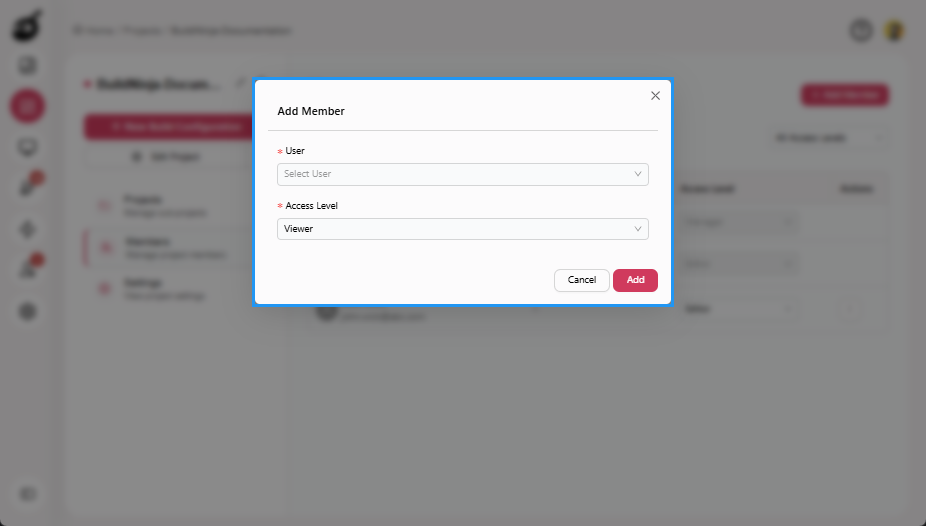
The Add Member dialog opens.
-
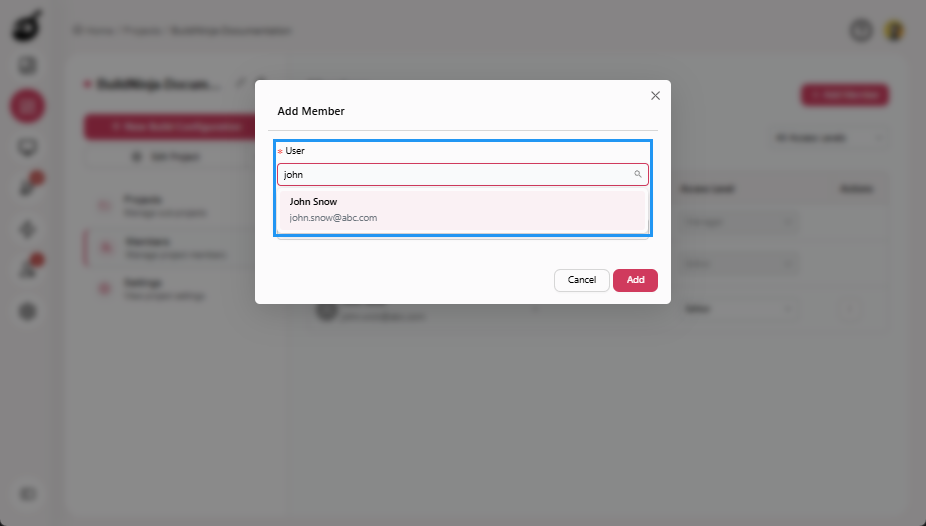
Search and choose the user you want to add in the User dropdown.
-
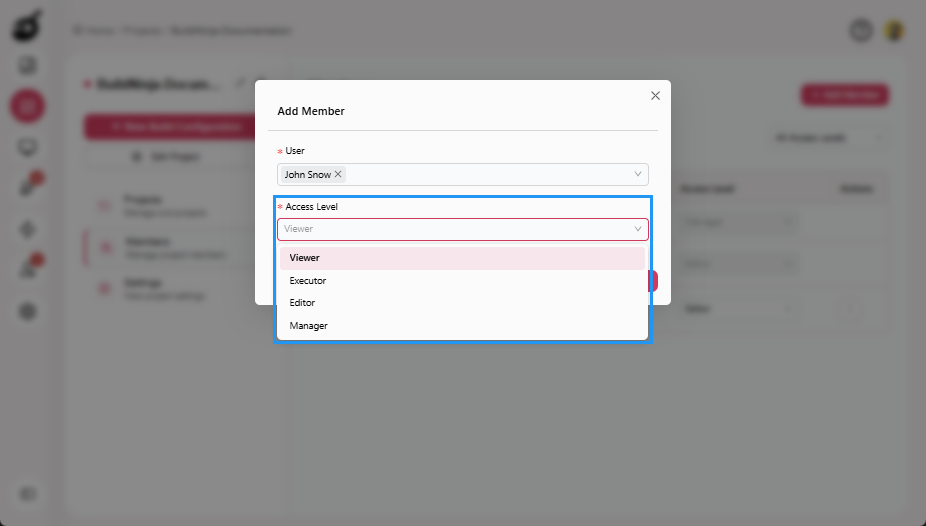
Select the appropriate role in the Access Level dropdown.
-
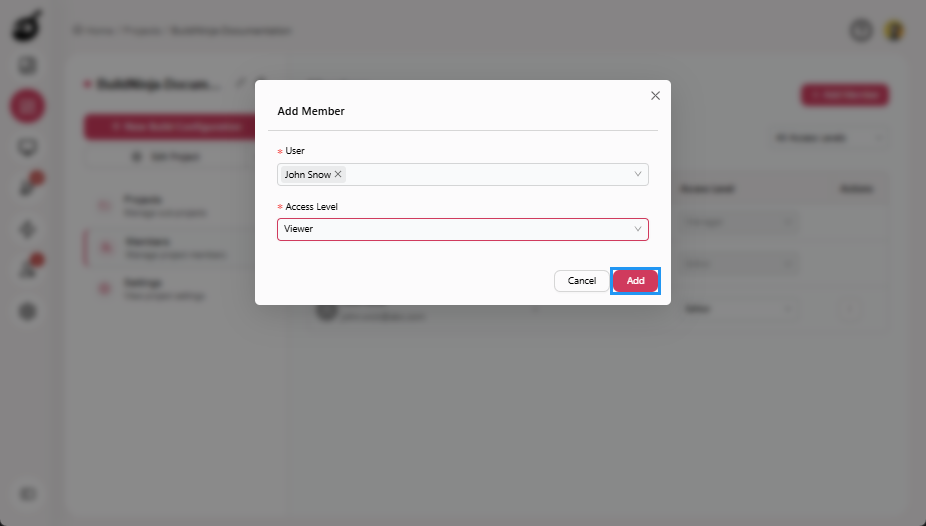
Click Add to assign the role.
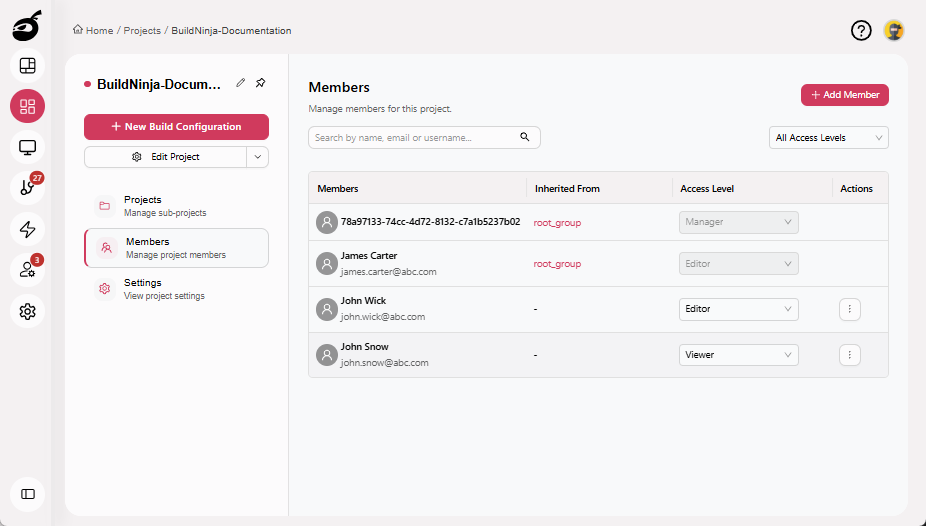
The user is added with the selected access level and immediately inherits permissions based on the configured scope.
You must have Manage permission on the project or be a System Admin to assign or modify user roles.
Update User Access
-
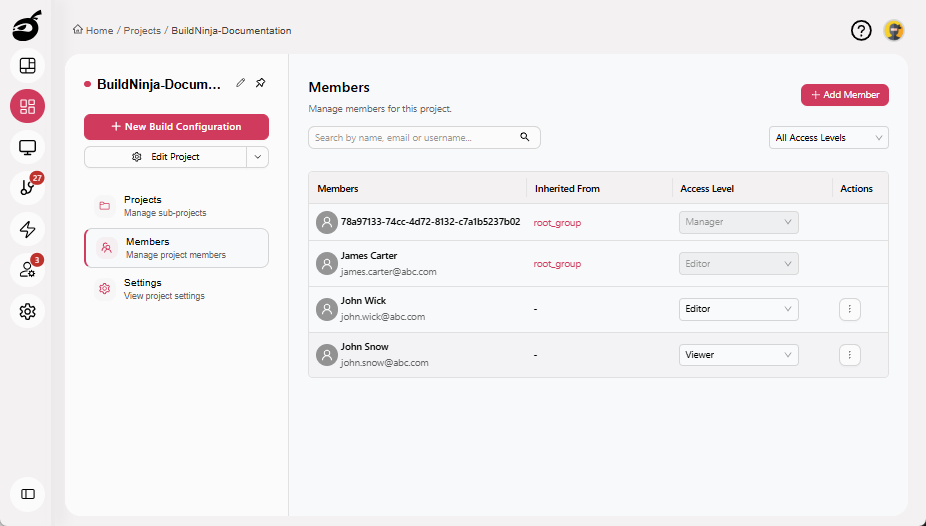
Locate the user whose role you want to update.
-
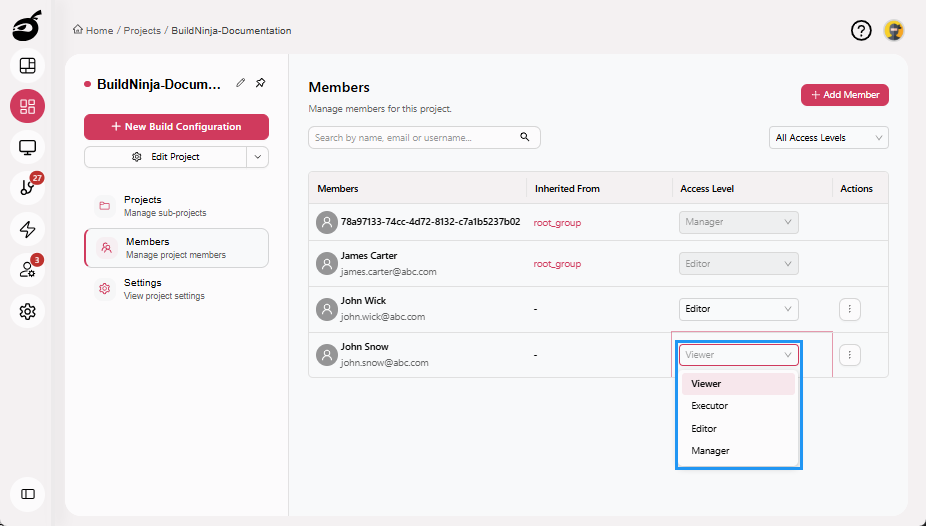
Open the role dropdown in the Access Level column.
-
Select the new role. The updated role is applied immediately.
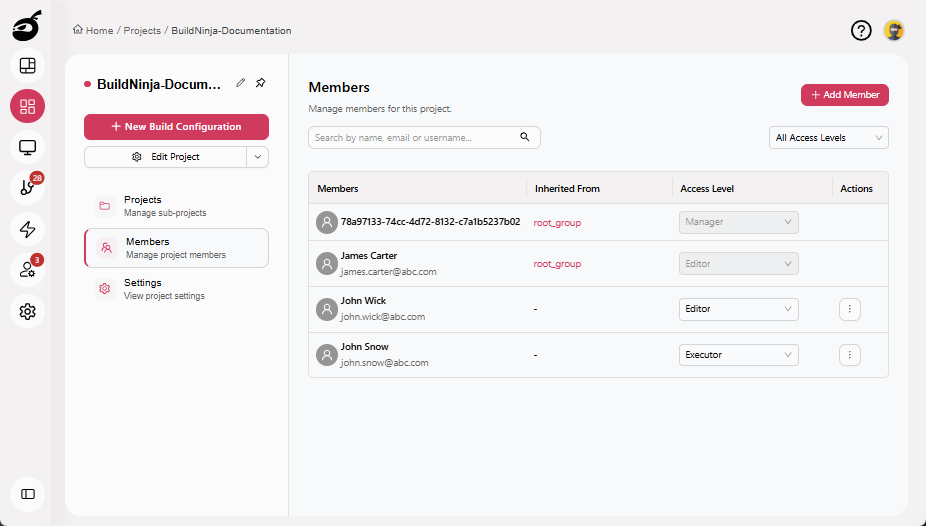
You must have Manage permission on the project or be a System Admin to update user roles.
Remove User Access
-
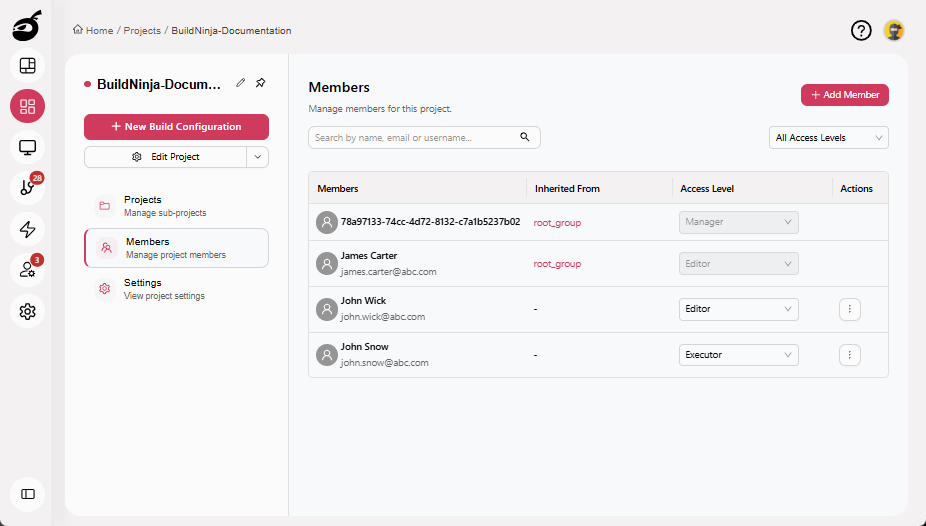
Locate the user you want to remove access for.
-
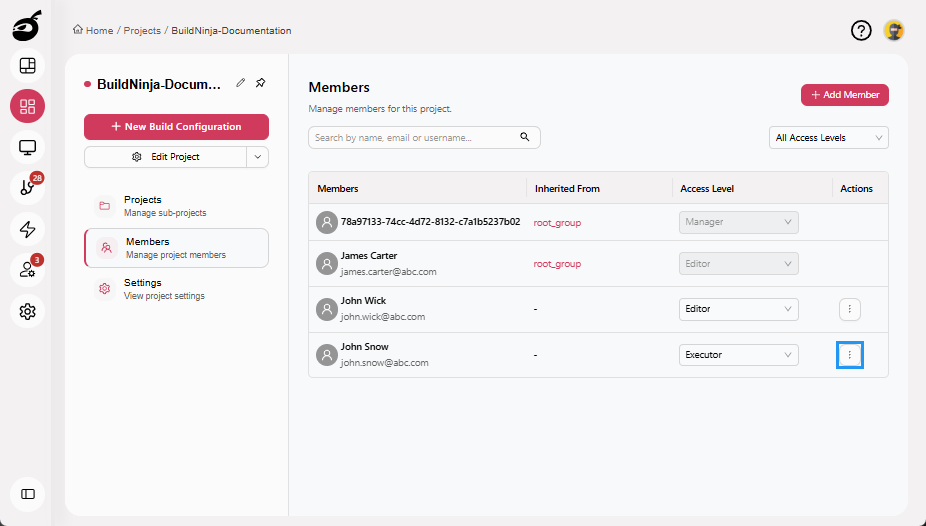
Click the Ellipsis ⋮ in the Actions column to open the options menu.
-
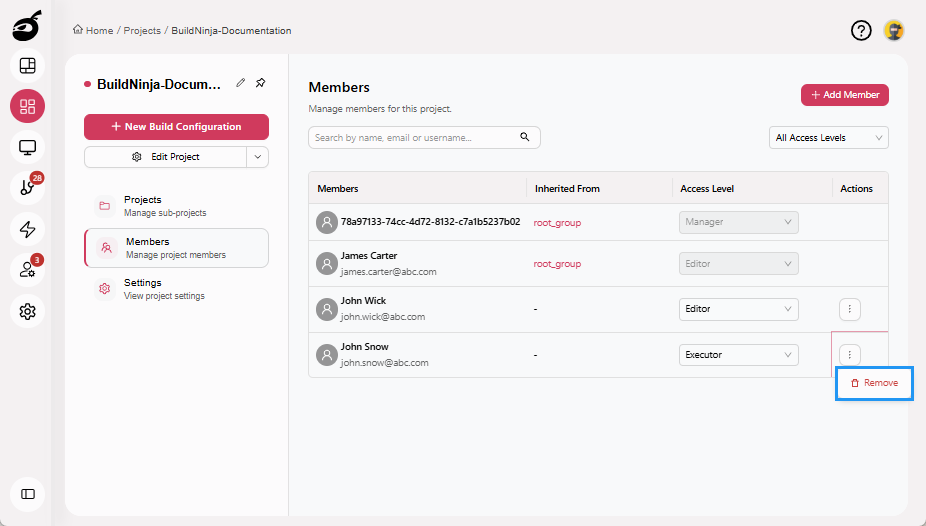
Click Remove.
-
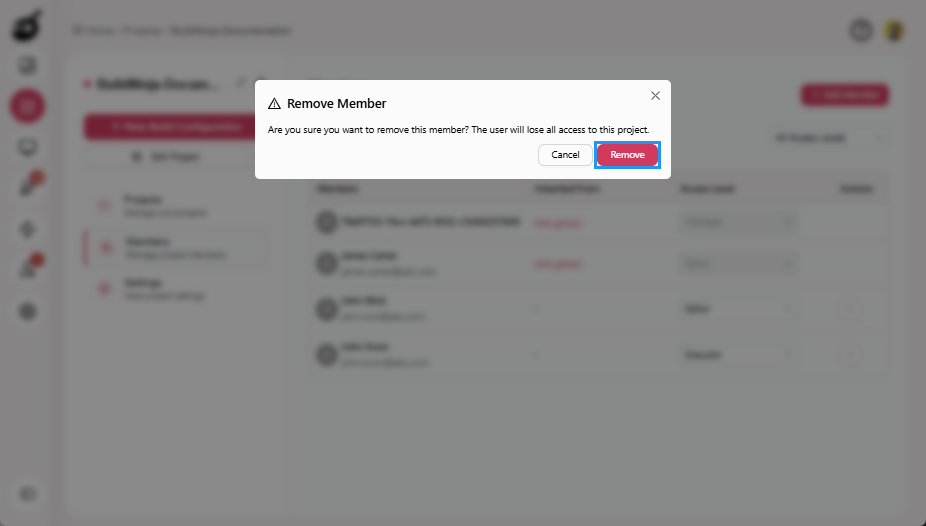
Click Remove to confirm in the confirmation dialog.
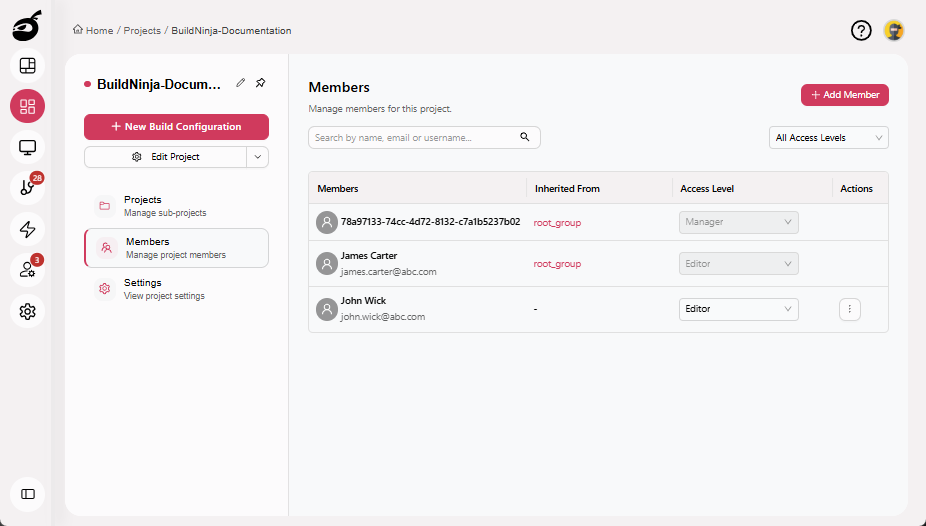
The user is removed and no longer has access to the selected scope.
- You must have Manage permission on the project or be a System Admin to remove user access.
- Removing a user from a project also removes their inherited access to all subprojects and build configurations under that project.
Build Configuration–Level Access Management
Manage user roles and permissions for an individual build configuration. Use this level to control access to a specific build without impacting other configurations in the same project.
Grant User Access
-
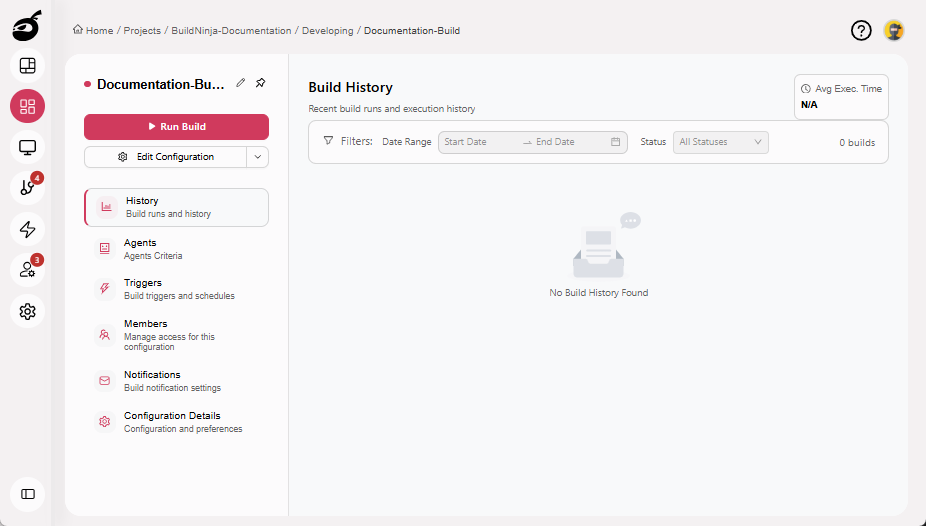
Open the required Build Configuration.
-
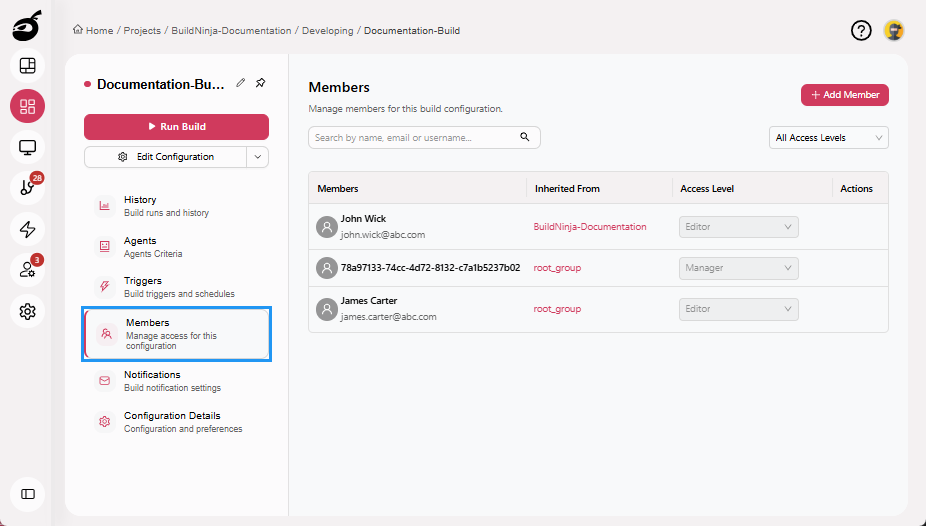
Select the Members tab.
-
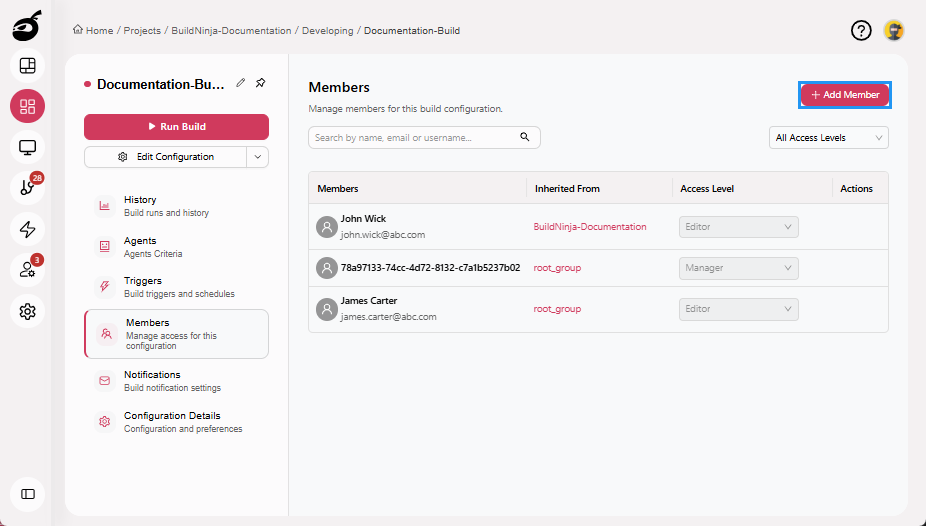
Click Add Member.
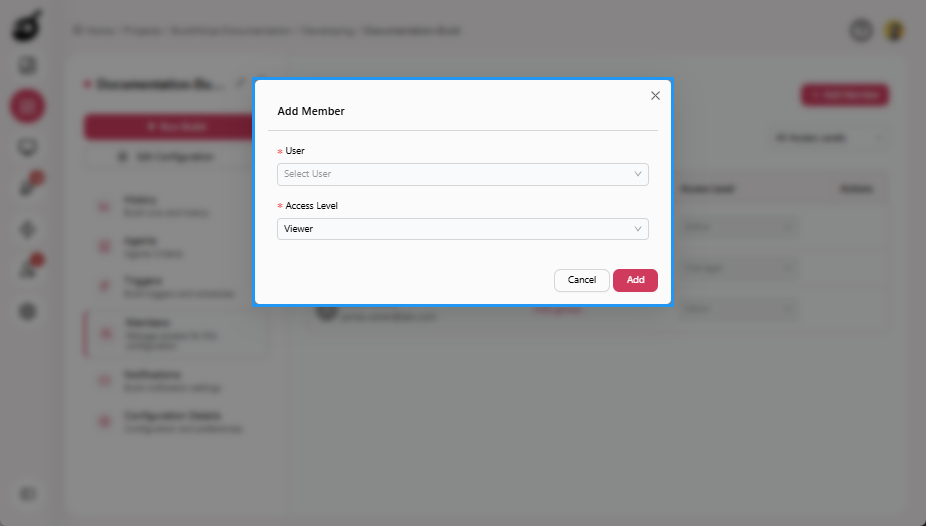
The Add Member dialog opens.
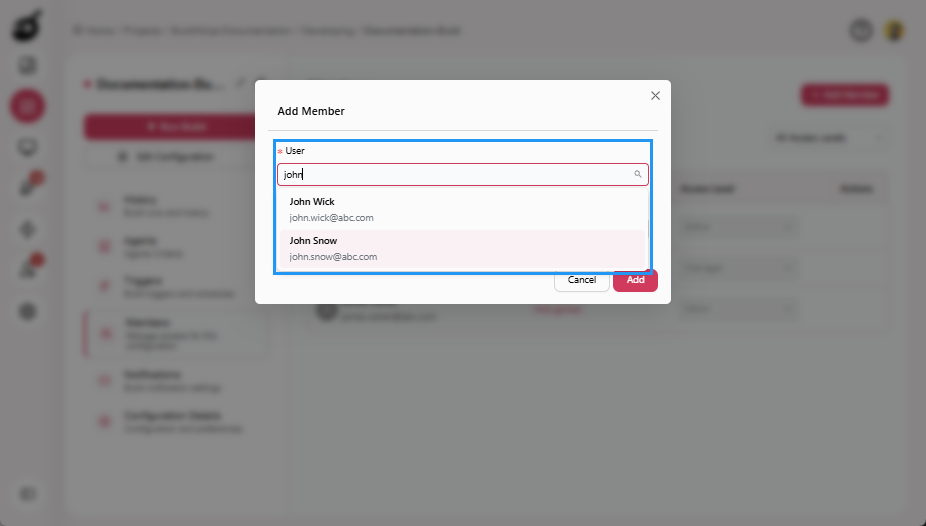
-
Search and choose the user you want to add in the User dropdown.
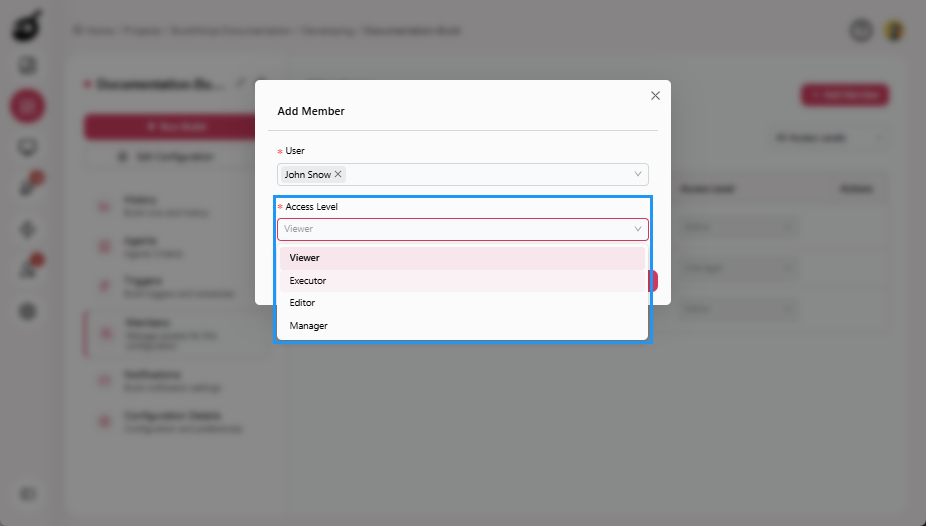
-
Select the appropriate role in the Access Level dropdown.
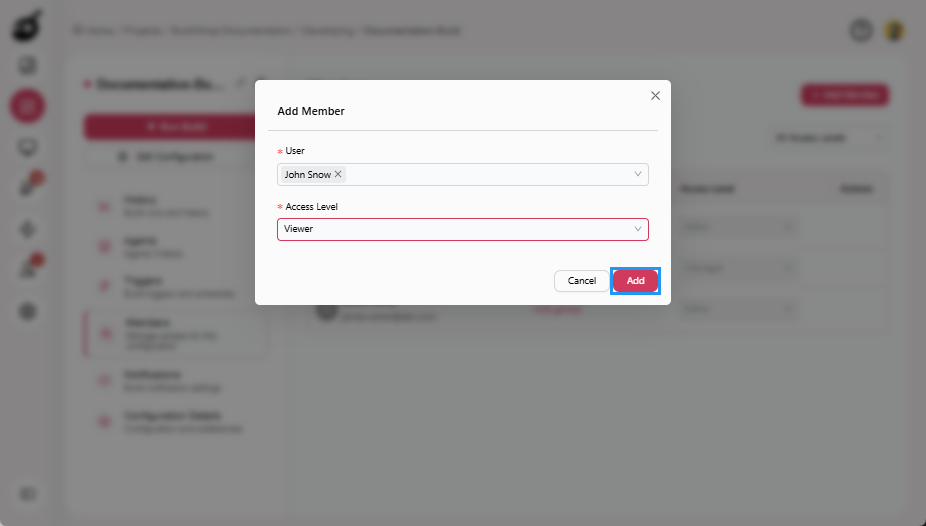
-
Click Add to assign the role.
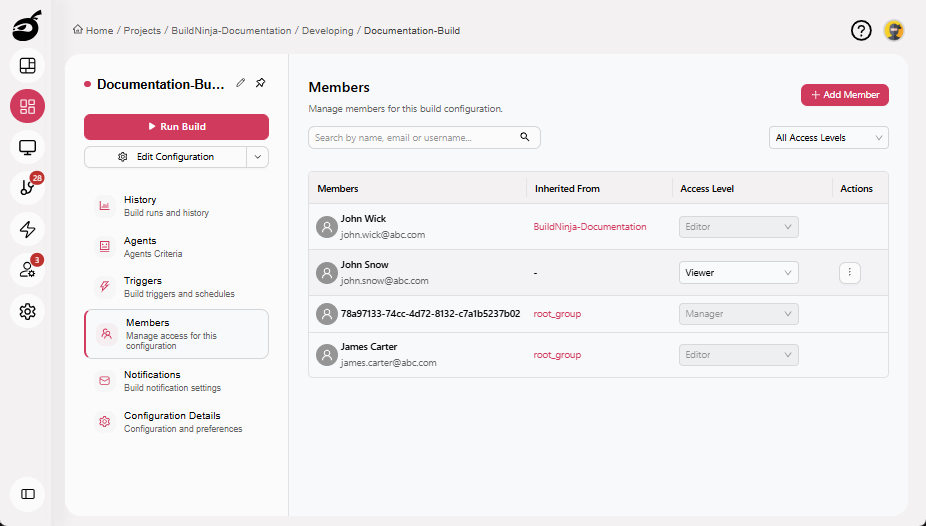
The user is added with the selected access level and immediately inherits permissions based on the configured scope.
You must have Manage permission on the project or be a System Admin to assign or modify user roles.
Update User Access
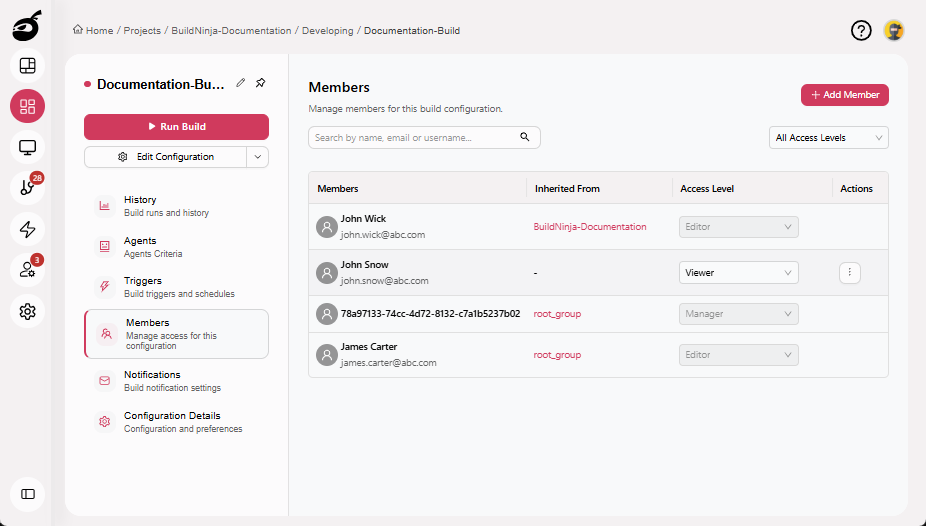
-
Locate the user whose role you want to update.
-
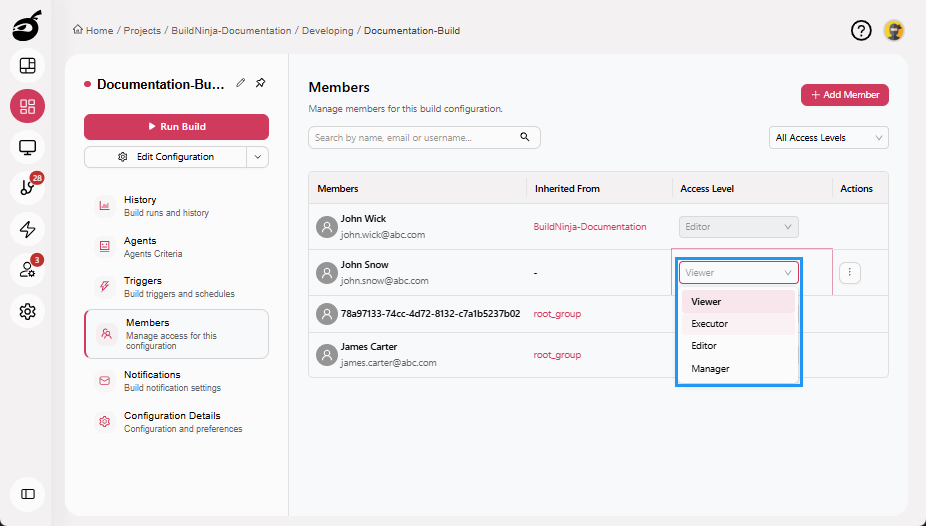
Open the role dropdown in the Access Level column.
-
Select the new role. The updated role is applied immediately.
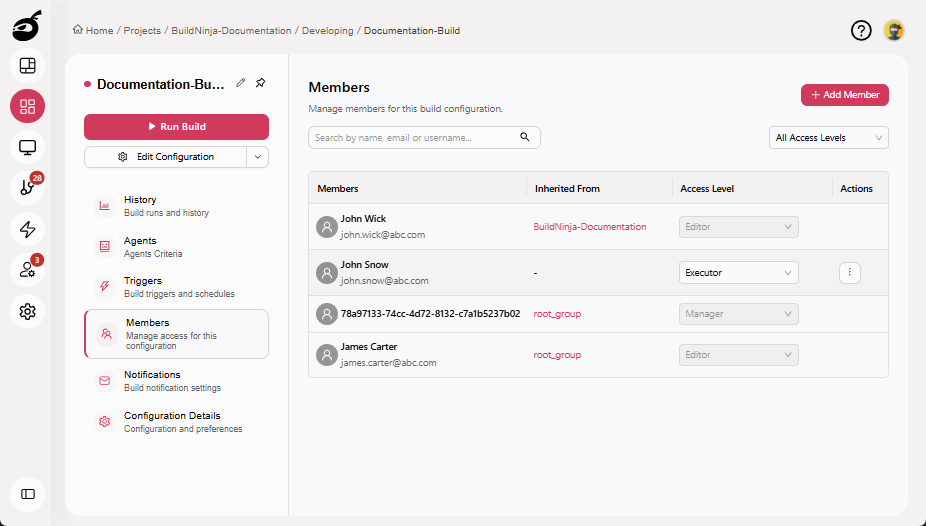
You must have Manage permission on the project or be a System Admin to update user roles.
Remove User Access
-
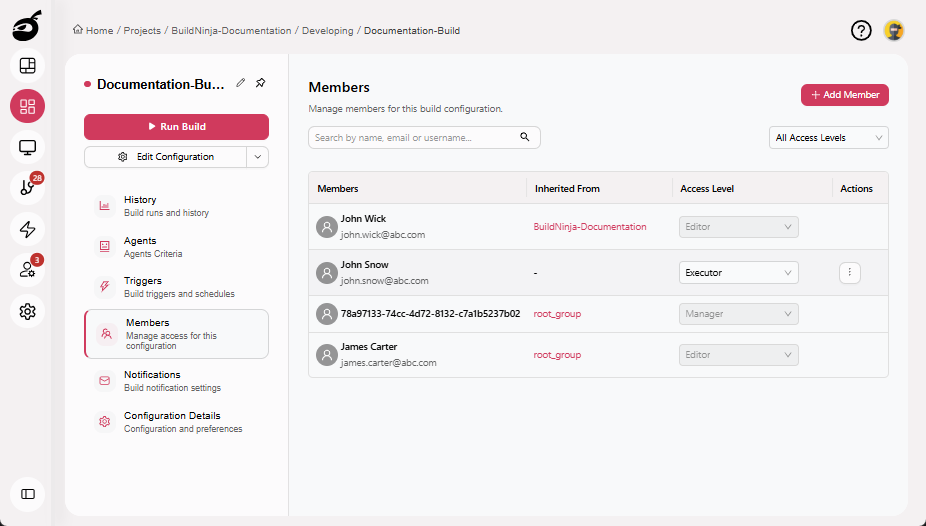
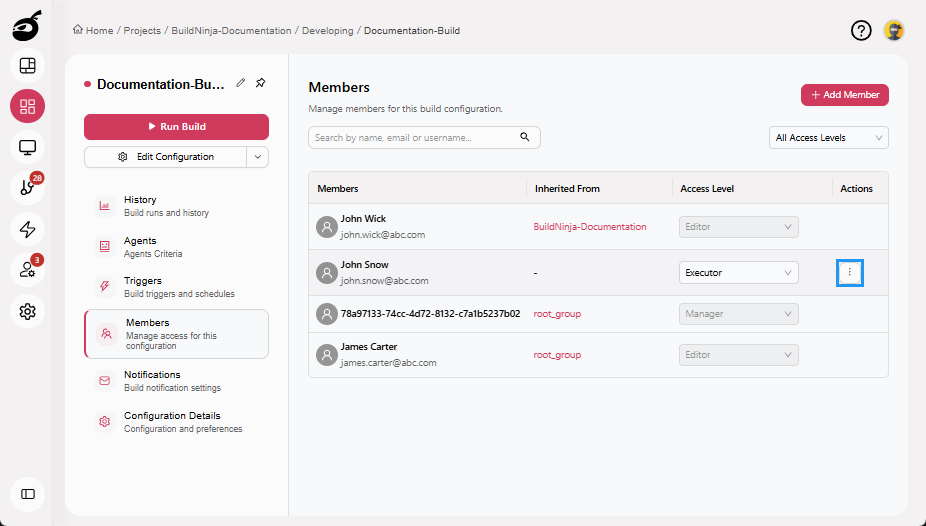
Locate the user you want to remove access for.
-
Click the Ellipsis ⋮ in the Actions column to open the options menu.
-
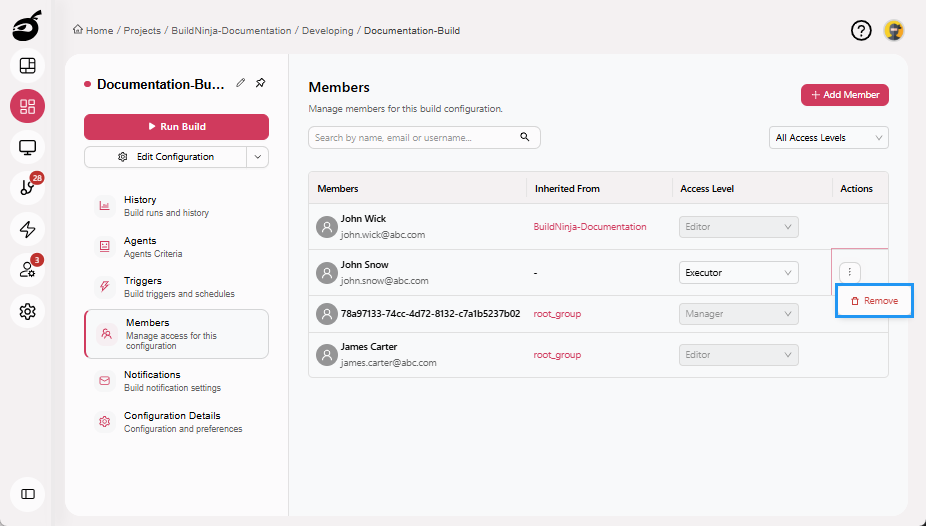
Click Remove.
-
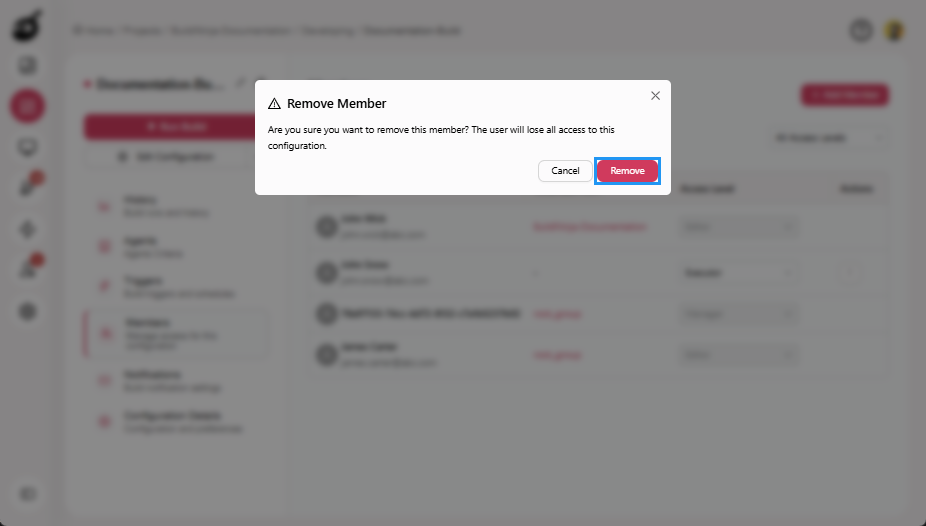
Click Remove to confirm in the confirmation dialog.
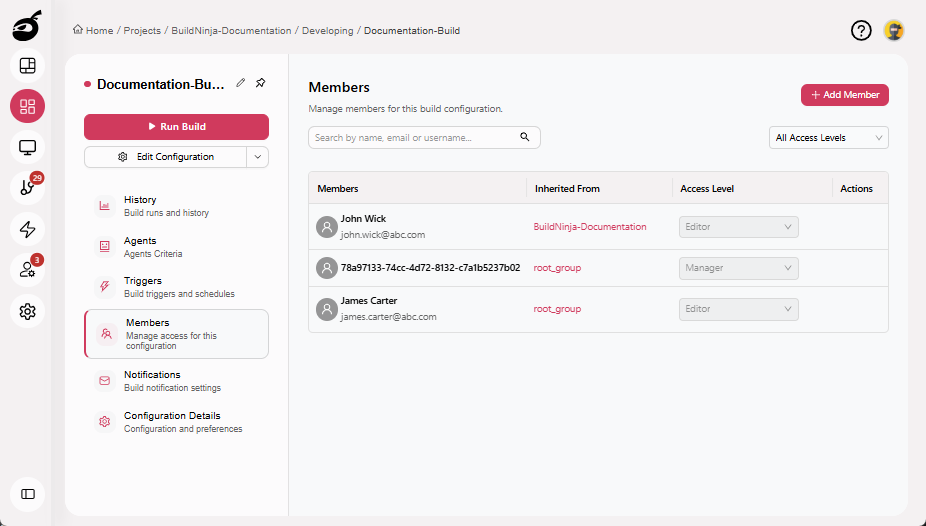
The user is removed and no longer has access to the selected scope.
- You must have Manage permission on the project or be a System Admin to remove user access.
- Removing a user from a project also removes their inherited access to all subprojects and build configurations under that project.