Reset User Password
Administrators can reset a user's password to assist users who have forgotten passwords or require a password change for security reasons.
To reset a user's password:
-
Navigate to Users
 and go to the Users tab.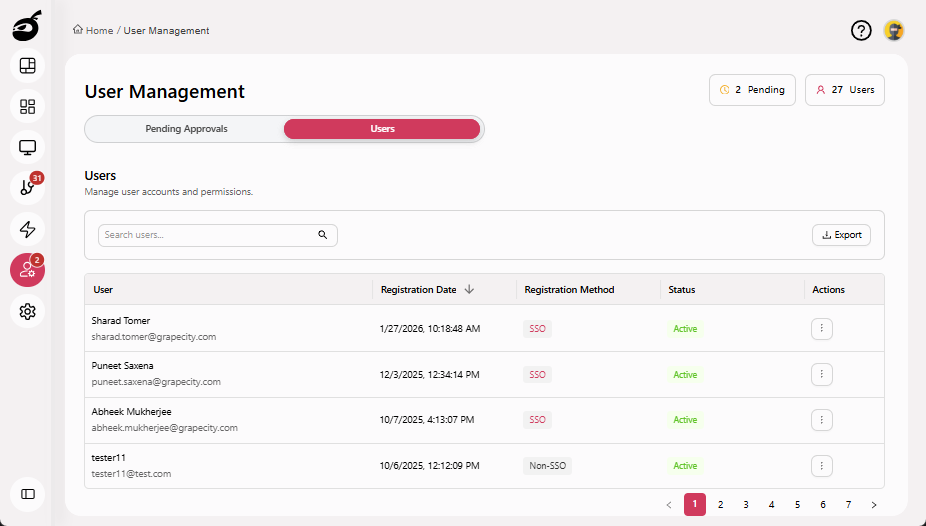
-
Search for the user using the Search Users bar above the user grid.
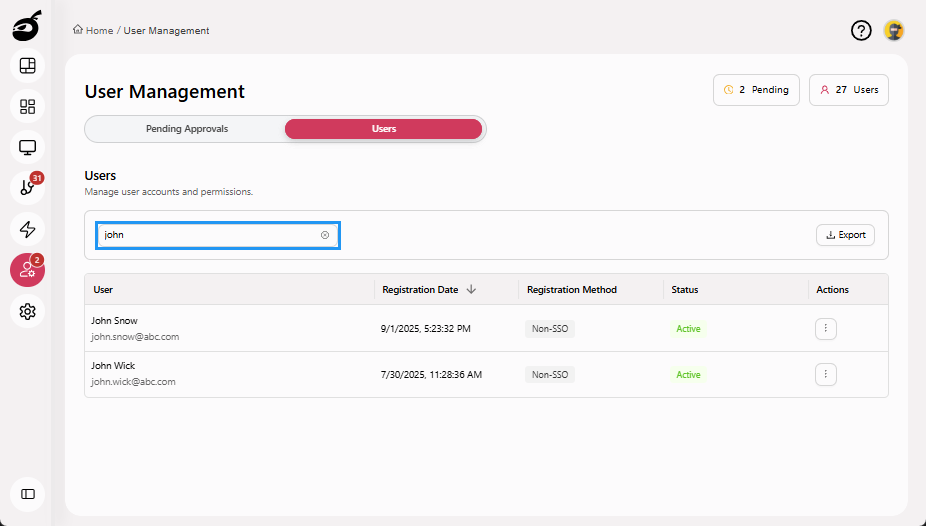
-
Click the Ellipsis ⋮ in the Actions column to open the options menu.
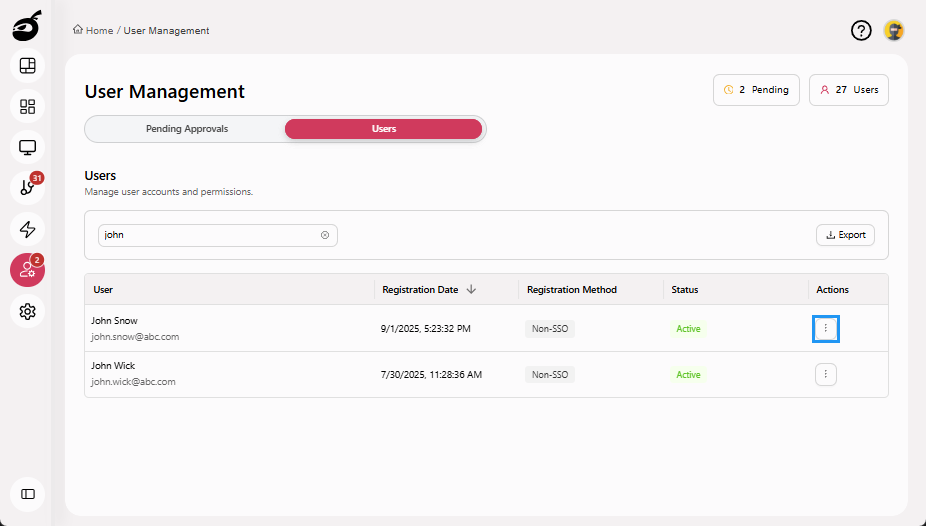
-
Click Reset Password to reset the password.
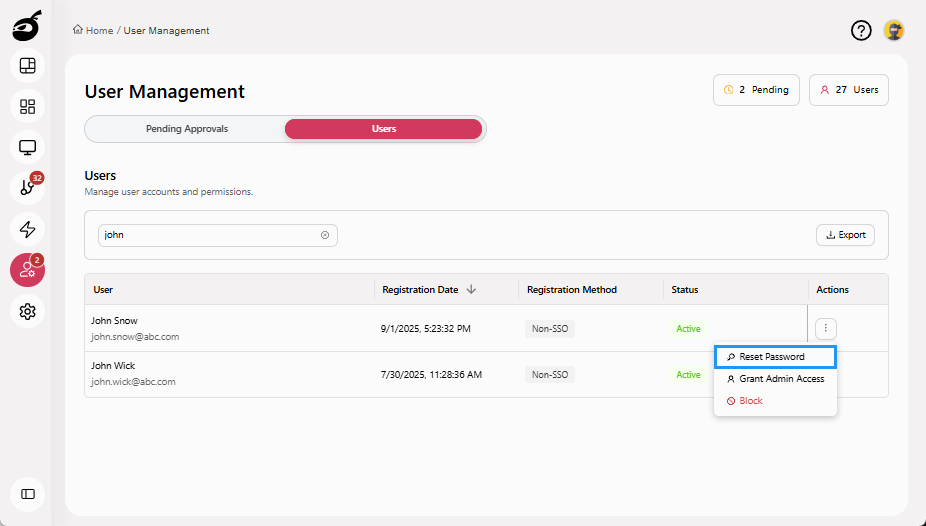
-
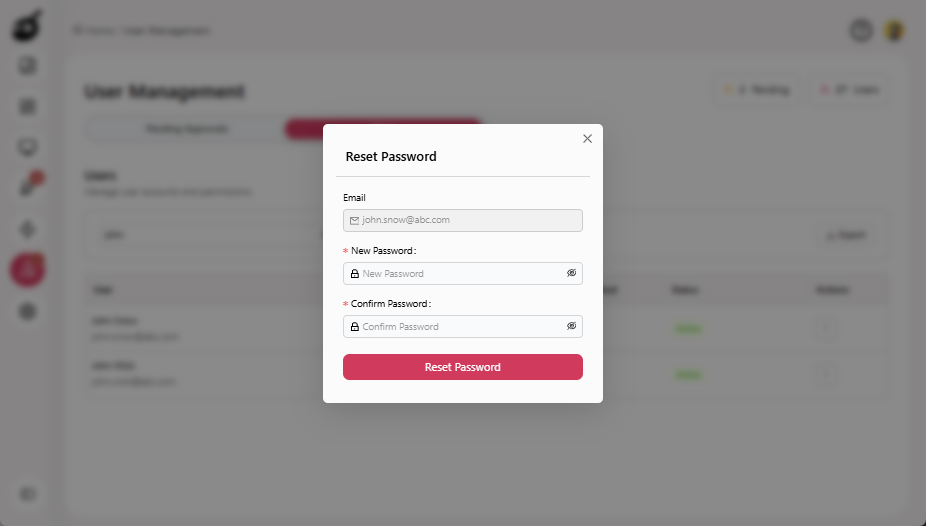
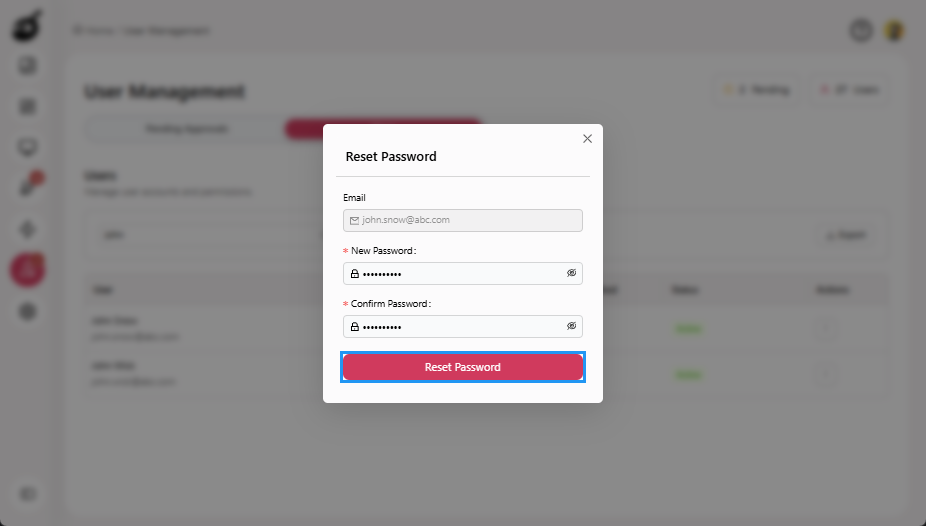
Enter a temporary password for the user. Ensure it meets the security requirements, such as length and complexity.
-
Click Reset Password to save the changes and inform the user to log in using the temporary password and change it immediately.
 info
infoFor instructions on how users can reset their own password, see Reset Password via Temporary PasswordBuildNinja allows you to reset your password through the Profile section, the Forgot Password option on the Sign in page, or by using a Temporary Password provided by an administrator..